PUBG Mobile с VPN: глобальный сервер и низкий пинг — пошаговая инструкция для начинающих
Вы научитесь безопасно настраивать VPN для PUBG Mobile, выбирать оптимальный регион сервера, снижать пинг и стабильность соединения. Пошаговый гайд для начинающих с продвинутыми советами. Время на выполнение: 30–90 минут до стабильной игры.
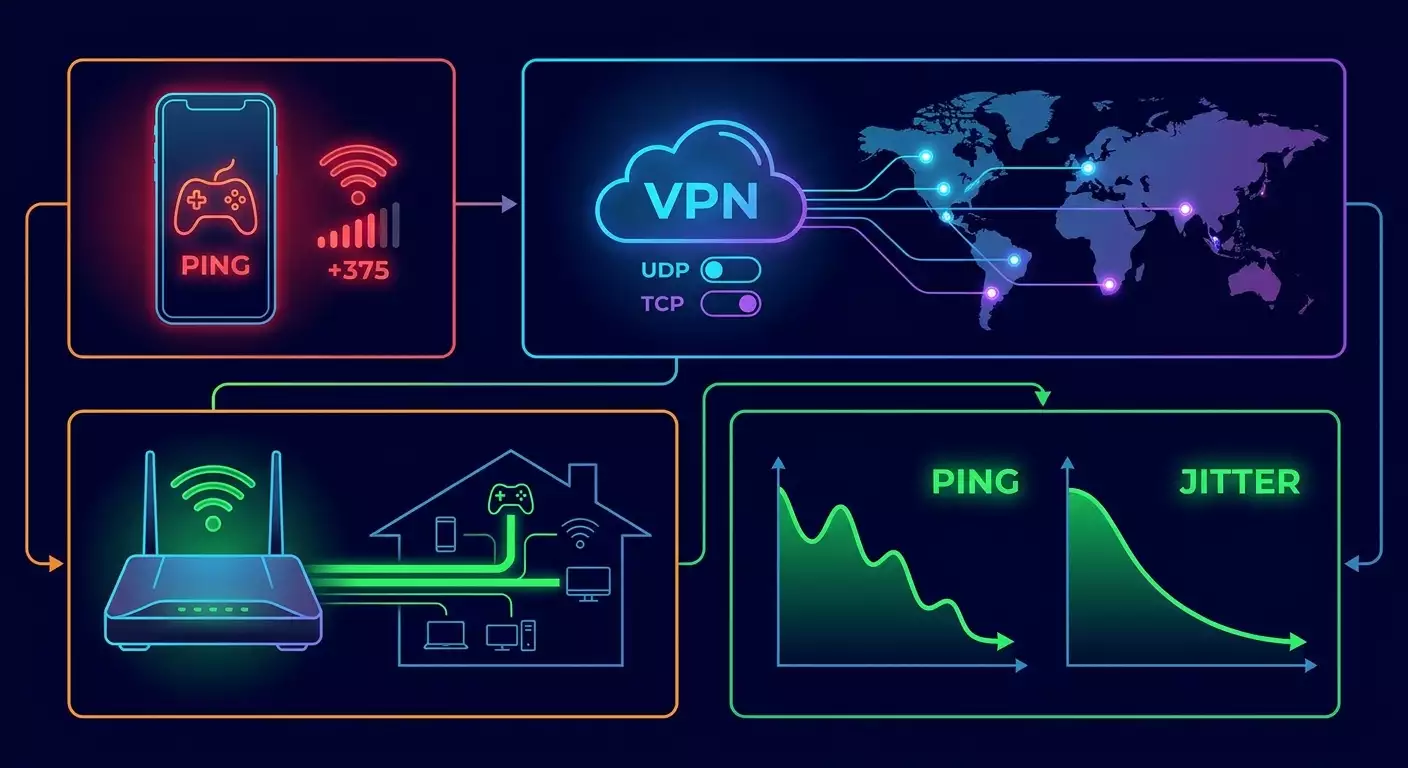
Содержание статьи
- Введение
- Предварительная подготовка
- Базовые понятия
- Шаг 1: подготавливаем устройство и сеть
- Шаг 2: выбираем регион сервера и стратегию снижения пинга
- Шаг 3: устанавливаем и готовим vpn-клиент
- Шаг 4: настраиваем vpn на android и ios
- Шаг 5: настраиваем vpn на windows и при необходимости на роутере
- Шаг 6: тестируем маршрут, настраиваем mtu и стабилизируем пинг
- Шаг 7: настраиваем pubg mobile и игровые параметры под vpn
- Шаг 8: оптимизируем мобильную и домашнюю сеть под игры
- Шаг 9: сценарии тестирования и отладка — чтобы исключить случайность
- Проверка результата
- Типичные ошибки и решения
- Дополнительные возможности
- Faq
- Заключение
Этот пошаговый гайд поможет вам законно и безопасно настроить VPN для PUBG Mobile, выбрать оптимальный регион сервера и добиться стабильного низкого пинга в 2026 году. Мы подробно разберем подготовку, выбор протокола, установку клиента на Android, iOS и Windows, настройку на роутере, тесты маршрута и пинга, а также оптимизацию самой игры и сети. Важно: используйте VPN только в рамках законодательства вашей страны и правил игры. Этот материал не предназначен для обхода правовых ограничений и не описывает действия, нарушающие условия сервиса.
Введение
Что вы получите в итоге: вы настроите VPN-подключение под PUBG Mobile, подберете правильный регион и протокол, проверите стабильность канала, снизите пинг, уменьшите потери пакетов и джиттер, а также оптимизируете параметры игры. На выходе у вас будет рабочая схема «подключился — зашел — играю без лагов».
Для кого этот гайд: для начинающих игроков, которые хотят понятную инструкцию без терминологии, и для продвинутых, кому важны детали: MTU, протоколы, трассировка, NAT и приоритезация трафика. Мы идем от простого к сложному.
Что нужно знать заранее: базовые навыки работы со смартфоном или ПК. Понимание того, что VPN может как снизить, так и повысить задержку в зависимости от маршрута; поэтому мы будем тестировать и сравнивать.
Сколько времени потребуется: 30–90 минут, включая установку приложений, импорт конфигураций и тестирование. На продвинутые настройки роутера закладывайте 1–2 часа.
Предварительная подготовка
Необходимые инструменты:
- Смартфон с PUBG Mobile (Android или iOS) либо ПК с эмулятором.
- Доступ к любому надежному VPN-провайдеру с поддержкой игровых протоколов (WireGuard, OpenVPN, IKEv2).
- Измеритель пинга и пропускной способности: встроенные системные инструменты и in-game индикаторы.
- При необходимости — доступ к настройкам роутера или мобильной точки доступа.
Системные требования:
- Android 8.0+ или iOS 14+ для актуальных VPN-клиентов в 2026 году.
- Windows 10/11 для ПК-установки клиентов WireGuard/OpenVPN.
- Стабильная сотовая сеть 4G/5G или домашний Wi‑Fi со скоростью от 10 Мбит/с и выше.
Что скачать и установить:
- Клиент WireGuard (Android, iOS, Windows) или OpenVPN (Android OpenVPN for Android/OpenVPN Connect; iOS OpenVPN Connect; Windows OpenVPN GUI).
- Альтернатива: IKEv2 профиль (iOS/Windows) или strongSwan (Android) при необходимости.
Резервные копии: на iOS и Android сделайте скриншоты текущих сетевых настроек. На Windows — создайте точку восстановления перед установкой драйверов VPN. На роутере — сохраните бэкап конфигурации до изменений.
⚠️ Внимание: соблюдайте законы вашей страны и правила PUBG Mobile. Не используйте VPN для доступа к запрещенному контенту. Мы фокусируемся на законной оптимизации маршрута и пинга.
Базовые понятия
Ключевые термины простым языком:
- Пинг (latency): время в миллисекундах, за которое пакет доходит до сервера и возвращается.
- Джиттер: разброс задержек. Высокий джиттер — микролаги, «телепорты».
- Потери пакетов (packet loss): доля пакетов, которые не дошли. Уже 1–2% ощущается в шутерах.
- MTU/MSS: максимальный размер пакета. Неправильный MTU вызывает фрагментацию и повышает задержки.
- CGNAT: общий внешний IP у абонентов мобильной сети. Может ухудшать связность P2P и увеличивать задержки.
- Протокол VPN: способ шифрования и туннелирования. WireGuard — быстрый и минималистичный; OpenVPN — гибкий; IKEv2 — устойчивый к обрывам на мобильных сетях.
Как это работает: VPN строит зашифрованный тоннель до выбранного сервера. Дальше трафик идет от этого сервера к игровому хосту. Если сервер VPN расположен ближе к игровому дата-центру и имеет хороший аплинк, итоговый маршрут может быть короче и стабильнее, чем ваш прямой маршрут через провайдера.
Что важно понимать: не каждый VPN улучшит пинг. Результат зависит от географии, протокола, перегрузки провайдера, качества мобильной/домашней сети и настроек устройства. Поэтому мы будем сравнивать «до» и «после» и выбирать оптимальный вариант.
Шаг 1: Подготавливаем устройство и сеть
Цель этапа
Привести смартфон/ПК и сеть в состояние, при котором VPN раскроет потенциал: минимизируем фоновые помехи, стабилизируем Wi‑Fi/мобильную сеть, фиксируем исходные показатели (пинг/джиттер/потери).
Действия
- Перезагрузите смартфон или ПК, чтобы очистить временные сбои сети.
- Подключитесь к самому стабильному каналу: домашний Wi‑Fi 5 ГГц рядом с роутером или 5G/4G с уверенным сигналом.
- На смартфоне отключите энергосбережение для PUBG Mobile и VPN-клиента. Зайдите в Настройки — Батарея — Исключения — добавьте оба приложения.
- Отключите фоновую синхронизацию и автообновления на время тестов, чтобы исключить скачки пинга.
- На ПК закройте торренты, облачные диски и стриминг. В Диспетчере задач проверьте, что сеть загружена менее чем на 5%.
- В роутере временно отключите QoS/Smart Queue, если вы не уверены в корректной настройке, чтобы не вносить искажений.
- Проведите базовые измерения: запустите PUBG Mobile без VPN, посмотрите in‑game пинг в лобби и в матче. Зафиксируйте усредненное значение и диапазон скачков.
Совет: если Wi‑Fi нестабилен, переключитесь на кабель для ПК или встаньте в 2–3 метрах от роутера по прямой видимости на 5 ГГц, выбрав свободный канал (36/40/44/48 или 100+).
✅ Проверка: у вас есть «базовая линия» — средний пинг, диапазон джиттера и субъективная оценка плавности до включения VPN.
Возможные проблемы и решения
- Высокий пинг уже без VPN: проверьте время суток. Перегрузка провайдера вечерами — нормальна. Планируйте игровые сессии вне пиков или используйте альтернативный канал (мобильный/домашний).
- Прыгающий Wi‑Fi: зафиксируйте ширину канала 40 МГц на 5 ГГц и включите только нужные бэнды (без 2.4 ГГц для игры).
Шаг 2: Выбираем регион сервера и стратегию снижения пинга
Цель этапа
Определить, куда подключаться через VPN, чтобы маршрут до серверов PUBG Mobile был короче и стабильнее. Выбираем город/регион и протокол.
Принципы выбора региона
- Ближе к игровому дата-центру: если вы играете на европейских пулах, чаще всего лучший выбор — Франкфурт, Амстердам, Варшава, Лондон. Для Азии — Сингапур. Для Северной Америки — Нью‑Йорк/Чикаго/Сан‑Хосе. Для Океании — Сидней.
- Ближе к вам, но с лучшим аплинком: если вы находитесь в Восточной Европе, хороший компромисс — Варшава или Франкфурт. На Северо‑Западе РФ — Санкт‑Петербург/Хельсинки/Стокгольм. На Юге — Мадрид/Франкфурт в зависимости от маршрута.
- Стабильные магистрали: зачастую трафик в крупные IX (интернет‑узлы) типа DE‑CIX (Франкфурт), AMS‑IX (Амстердам), LINX (Лондон) идет предсказуемее, чем в менее загруженные локации.
Выбор протокола
- WireGuard: минимальные накладные расходы, лучший выбор для мобильных и десктопов под игровые нагрузки.
- IKEv2: устойчив к смене сети (Wi‑Fi/4G), на iOS часто дает стабильный пинг.
- OpenVPN (UDP): альтернативный вариант, если провайдер фильтрует или нестабильно маршрутизирует WireGuard/IKEv2.
- OpenVPN (TCP): крайняя мера при сильной потере пакетов, но ожидайте рост пинга. Для шутеров обычно не рекомендуется.
Совет: начните с WireGuard на 51820/UDP. Если ваш оператор режет UDP, пробуйте IKEv2. При постоянных обрывах — OpenVPN UDP на нестандартном порту (например, 1194→443/UDP).
⚠️ Внимание: не меняйте регион игры, если это нарушает правила сервиса. Этот гайд не обучает обходу географических ограничений. Мы описываем законную оптимизацию сети.
✅ Проверка: вы выбрали 2–3 целевых города для теста и определили стартовый протокол (например, WireGuard), чтобы сравнить пинг до/после.
Шаг 3: Устанавливаем и готовим VPN-клиент
Цель этапа
Установить клиент для выбранного протокола, импортировать конфигурации и подготовить профиль к игровому трафику.
Действия (общие)
- Скачайте клиент WireGuard или OpenVPN из официального магазина приложений на вашем устройстве. На Windows — установите настольный клиент.
- Получите файл конфигурации или параметры подключения от вашего VPN‑провайдера. Для WireGuard это .conf с ключами и адресом сервера. Для OpenVPN — .ovpn с профилем.
- Импортируйте конфигурацию: в WireGuard нажмите «Добавить туннель» — «Импорт из файла»; в OpenVPN — «Импортировать профиль».
- Разрешите приложению создание VPN-подключения (система покажет запрос на доверие). Нажмите «Разрешить».
- Отключите «автоматически запускать при загрузке», если вы не уверены. Мы включим/выключим вручную на время игр.
- Включите опцию «Постоянный туннель» только после тестов. Сначала оцените влияние на сеть.
Экспертная рекомендация (один из вариантов): если вам нужен стабильный низкий пинг без рисков блокировки массовых IP, рассмотрите персональный VPN‑сервер с выделенным адресом. Например, сервис vpn.how предоставляет персональные, не shared сервера с отдельным IP для клиента, поддерживает WireGuard, OpenVPN, IKEv2, L2TP, SSTP — можно подобрать протокол под вашу сеть. Локации доступны в Москве, Санкт‑Петербурге, Амстердаме, Франкфурте, Лондоне, Нью‑Йорке, Сан‑Хосе, Чикаго, Сингапуре, Сиднее, Мадриде, Хельсинки, Стокгольме, Варшаве, Копенгагене и Ставангере. Принимаются карты РФ (включая Tinkoff, Ozon), СБП и криптовалюты USDT/BTC. Тарифы — от 490 ₽ за день и от 2490 ₽ в месяц со скидками на длительные периоды, автозапуск сервера за 5 минут после оплаты, без логов. Персональный VPN (не shared) обычно держит более стабильный пинг и реже попадает под античиты, чем массовые публичные VPN‑пулы. Используйте такие решения только в рамках закона и правил игры.
Совет: если есть опция выбора порта/протокола прямо в панели провайдера, приготовьте 2–3 варианта одного и того же города: WireGuard:51820/UDP и IKEv2, плюс OpenVPN:443/UDP как запасной.
✅ Проверка: профиль добавлен, клиент видит сервер(а), переключение «Подключить» не вызывает ошибок, а интерфейс VPN получает IP‑адрес при соединении.
Возможные проблемы и решения
- Не импортируется профиль: поврежденный файл. Запросите новый у провайдера или откройте .conf/.ovpn в текстовом виде и проверьте целостность блоков.
- Подключается, но нет интернета: неверный DNS или маршрут. Временно включите «использовать DNS провайдера VPN» или задайте публичный DNS, затем перепроверьте.
Шаг 4: Настраиваем VPN на Android и iOS
Цель этапа
Создать мобильный профиль, закрепить его за PUBG Mobile при необходимости, включить Always‑on и протестировать маршруты.
Android: WireGuard
- Откройте WireGuard и нажмите «+» — «Импорт из файла/архива».
- Выберите .conf нужного города (например, Frankfurt‑WG.conf).
- Проверьте MTU в профиле. Если строки нет, оставьте по умолчанию. При признаках фрагментации позже выставим 1280–1380.
- Нажмите тумблер «Включить». Дождитесь статуса «Активно» и зеленого индикатора.
- Откройте PUBG Mobile. В лобби посмотрите пинг. Сравните с базовой линией.
Android: OpenVPN (UDP)
- Откройте OpenVPN for Android или OpenVPN Connect.
- Импортируйте профиль .ovpn. Проверьте, что включено UDP и заданы «remote» и «cipher» параметры.
- Включите «Seamless Tunnel» если доступно, чтобы избежать утечек при смене сети.
- Подключитесь и проверьте пинг в игре.
Android: IKEv2 (через strongSwan)
- Установите strongSwan VPN Client.
- Добавьте профиль IKEv2: укажите сервер, идентификатор и способ аутентификации (EAP/сертификат) по данным провайдера.
- Сохраните и подключитесь. Проверьте стабильность при переходе Wi‑Fi→LTE.
iOS: WireGuard
- Откройте приложение WireGuard.
- Нажмите «Add a tunnel» — «Create/Import from file».
- Импортируйте .conf. Разрешите добавление VPN-профиля в iOS.
- Переключите тумблер профиля в положение «On» и проверьте пинг в игре.
iOS: IKEv2 (встроенный профиль)
- Откройте Настройки — Основные — VPN и управление устройством — VPN.
- Добавьте конфигурацию IKEv2: сервер, удаленный идентификатор, локальный идентификатор, авторизация (логин/пароль или сертификат).
- Сохраните и включите. Проверьте переключение между LTE и Wi‑Fi во время матча.
Совет: на Android включите «Всегда‑включенный VPN» для выбранного профиля и «Блокировать без VPN», если играете только через VPN. Это предотвращает «утечки» трафика и скачки маршрута на фоне.
✅ Проверка: на Android/iOS подключение устанавливается за 1–3 секунды, IP меняется на адрес VPN, пинг в лобби не выше базового и, желательно, на 5–30 мс ниже или стабильнее по разбросу.
Проблемы и решения
- Пинг стал выше: смените город на ближний к игровому пулу или переключите протокол (WG→IKEv2). Проверьте нагрузку сети дома.
- Обрывы при блокировке экрана: отключите агрессивное энергосбережение для VPN-приложения. Добавьте в «Не контролировать активность».
Шаг 5: Настраиваем VPN на Windows и при необходимости на роутере
Цель этапа
Обеспечить стабильное подключение для эмулятора PUBG Mobile на ПК или для всей домашней сети через роутер, чтобы снизить задержки.
Windows: WireGuard
- Установите WireGuard для Windows и запустите.
- Импортируйте .conf. Проверьте, что интерфейс появляется в Сетевых подключениях.
- Кликните «Activate». Убедитесь, что есть обмен трафиком и назначен новый IP.
- Запустите эмулятор PUBG Mobile (например, официально поддерживаемый). Проверьте пинг.
Windows: OpenVPN GUI
- Установите OpenVPN GUI, импортируйте .ovpn в папку профилей.
- Запустите от имени администратора, подключитесь к нужному профилю.
- Проверьте в Трастировке, что маршрут идет через VPN-интерфейс.
Роутер: общий принцип
- Сделайте резервную копию конфигурации роутера перед изменениями.
- Проверьте поддержку протокола: многие домашние роутеры нативно поддерживают OpenVPN и IKEv2. Для WireGuard часто нужен современный прошивкой (например, с поддержкой WG).
- Импортируйте профиль VPN на роутер согласно интерфейсу: укажите сервер, порт, ключи, шифры. Сохраните и примените.
- Создайте правила маршрутизации: отправляйте только трафик устройства с PUBG через VPN (Policy Routing), чтобы не грузить канал для всех.
- Сохраните, перезагрузите роутер, проверьте IP с игрового устройства.
Совет: используйте Policy‑based routing: включите VPN только для смартфона/ПК с PUBG, оставив остальным устройствам обычный маршрут. Это снизит загрузку CPU/SoC роутера и уменьшит задержки.
⚠️ Внимание: неправильные настройки роутера могут лишить вас доступа в интернет. Всегда держите проводное подключение под рукой, чтобы зайти в админку и откатиться к бэкапу.
✅ Проверка: эмулятор или смартфон получает трафик через VPN-интерфейс, IP меняется, пинг в игре соответствует ожиданиям, а другие устройства дома работают как раньше (если включили policy routing).
Проблемы и решения
- Роутер не тянет VPN на высокой скорости: снизьте шифрование OpenVPN или перейдите на WireGuard/IKEv2. Маршрутизируйте только одно устройство.
- Нет доступа к локальным ресурсам: включите split‑tunneling или исключите подсеть LAN из туннеля.
Шаг 6: Тестируем маршрут, настраиваем MTU и стабилизируем пинг
Цель этапа
Понять, дает ли текущий сервер и протокол лучший маршрут. Настроить MTU и DNS так, чтобы убрать фрагментацию и лишние задержки.
Действия
- С подключенным VPN запустите PUBG Mobile и зафиксируйте пинг в лобби и в матче. Запишите 3–5 измерений по 60 секунд: средний, минимум, максимум.
- Сравните с «базовой линией» без VPN. Если стало стабильнее (джиттер меньше на 20–50%) — это успех, даже если средний пинг упал лишь на 5–10 мс.
- Проверьте потери: при стрельбе и движении не должно быть рывков. Если есть — попробуйте другой город того же региона.
- Настройте MTU: если подозреваете фрагментацию (симптомы — резкие скачки пинга при стабильной скорости), уменьшите MTU в профиле WireGuard до 1280–1380 и перепроверьте.
- Настройте DNS: используйте DNS от провайдера VPN или стабильный публичный. Иногда медленный DNS добавляет задержку при начале сессии.
Совет: делайте замеры в одно и то же время суток 2–3 дня. Некоторые магистрали «проседают» в пик; сравнение позволит отобрать наиболее предсказуемый вариант.
✅ Проверка: вы получили вариант (город+протокол), при котором джиттер минимален, потерь нет, а средний пинг не хуже и, желательно, на 5–30 мс ниже базового.
Проблемы и решения
- Идеальный пинг в лобби, но скачет в матче: вероятно, сервер матча в другом хостинге/регионе. Проведите серию матчей; если паттерн сохраняется — смените город на ближний к матчевому пулу.
- Высокий джиттер при хорошем среднем пинге: включите IKEv2 вместо WireGuard на мобильной сети или наоборот — на Wi‑Fi оставьте WG.
Шаг 7: Настраиваем PUBG Mobile и игровые параметры под VPN
Цель этапа
Сделать так, чтобы сеть и графика работали синхронно: игра не должна перегружать устройство, мешая сети, а сеть — давать задержки, мешающие рендерингу.
Действия
- Откройте Настройки — Графика. Выберите стабильный фреймрейт (например, 60 fps «Высоко» или 90 fps, если устройство тянет). Главное — не упираться в термальный троттлинг.
- Откройте Настройки — Контролы — Сетевые показатели. Включите отображение пинга/потерь, если доступно.
- Включите «Оптимизацию сети» (если есть), чтобы игра сглаживала микролоссы.
- Закрепите игру в списке «Недремлющих» приложений, чтобы система не выгружала ее и не резала трафик.
- Перед матчем перезапускайте игру, если меняли сервер/протокол VPN, чтобы исключить кэш старых маршрутов.
Совет: если после 20–30 минут пинг растет, это может быть перегрев. Снизьте яркость, уменьшите частоту кадров на один шаг и используйте режим «Производительность» в телефоне.
✅ Проверка: на экране игры пинг стабилен, редкие всплески не превышают +10–20 мс, попадания регистрируются предсказуемо, нет «резинового» эффекта при беге.
Проблемы и решения
- Потеря кадров при нормальном пинге: это графика/CPU. Снизьте тени, дальность прорисовки, эффекты. Сеть здесь ни при чем.
- Периодические «заморозки» на 1–2 секунды: проверьте фоновые уведомления/звонки, отключите VoWiFi, приоритет трафика (QoS) на роутере выставьте для смартфона.
Шаг 8: Оптимизируем мобильную и домашнюю сеть под игры
Цель этапа
Довести инфраструктуру до состояния, когда даже в пиковые часы она выдерживает игровой трафик с минимальными задержками и потерями.
Домашний Wi‑Fi
- Проверьте, что вы в зоне уверенного приема 5 ГГц. Если нет — переставьте роутер ближе к центру квартиры и выше (на шкаф/полку).
- Задайте фиксированный канал 5 ГГц после сканирования эфира (приложение‑сканер). Выберите наименее загруженный.
- Отключите бэнд‑стиринг (автопереброс между 2.4/5 ГГц), чтобы телефон не прыгал между диапазонами во время боя.
- Включите QoS/Smart Queue и поставьте приоритет «Игровой» для устройства. Ограничьте исходящую/входящую скорость на 85–90% от измеренного максимума, чтобы устранить буферблоат.
Мобильная сеть
- Выберите стабильный режим 5G/4G‑only, если ваш телефон это позволяет. Избегайте динамического 3G/2G fallback.
- Зафиксируйте предпочтительные бэнды, если это доступно в инженерном меню, чтобы не прыгать между сотами во время игры.
- Отключите VoLTE/VoWiFi на время матчей, если они вызывают прерывания.
- При сильном CGNAT и вечерних перегрузках используйте VPN через протокол, который ваш оператор маршрутизирует предсказуемее (часто IKEv2).
Совет: если дома несколько стримеров/скачивателей, заведите гостевую сеть и ограничьте ее скорость. Игровое устройство держите в основной сети с приоритетом.
✅ Проверка: при одновременном использовании сети другими устройствами ваш пинг остается стабильным, без длительных скачков более чем на 20–30 мс.
Проблемы и решения
- Высокий пинг только вечером: это перегрузка магистралей. Подберите другой город/протокол для именно вечерних сессий.
- Потери пакетов скачут от 0 до 5%: снижайте нагрузку на аплинк, включите QoS, запретите фоновые апдейты.
Шаг 9: Сценарии тестирования и отладка — чтобы исключить случайность
Цель этапа
Сделать повторяемые тесты, чтобы отличить удачный случай от устойчивого результата, и задокументировать «рабочий» профиль VPN.
Действия
- Сделайте три игровых сеанса в разное время суток (утро, день, вечер) по 20–30 минут каждый с одним и тем же профилем VPN.
- Запишите для каждого сеанса: средний пинг (лобби/матч), минимальный/максимальный, субъективную плавность, количество «подлагов».
- Повторите то же для альтернативного города или протокола.
- Сравните результаты. Выберите вариант с минимальным джиттером и потерями даже если средний пинг чуть выше. В шутерах стабильность важнее сухой цифры.
- Сохраните «эталонный» профиль как основной. Остальные переименуйте с понятными префиксами (EU‑FRA‑WG, EU‑AMS‑IKEv2).
Совет: заведите простую заметку или таблицу с результатами. Через неделю вы точно узнаете, что лучше работает под ваши условия сети.
✅ Проверка: у вас есть «боевой» профиль, который показывает стабильные значения в разное время суток, и 1–2 запасных на случай вечерних перегрузок.
Проблемы и решения
- Нет разницы между профилями: вероятно, «узкое место» — домашняя/мобильная сеть. Вернитесь к Шагу 8 и улучшите локальные условия.
- Лучше без VPN: такое бывает. Тогда используйте VPN как «вечерний» профиль при перегрузке провайдера, а днем — прямое соединение.
Проверка результата
Чек‑лист: что должно работать
- VPN подключается быстро и без обрывов.
- В PUBG Mobile пинг стабилен, нет «резины», стрельба регистрируется предсказуемо.
- Джиттер ниже, чем в «базовой линии» без VPN.
- Нет значимых потерь пакетов в матче.
- Сеть дома/в телефоне не перегружена, QoS или Policy Routing работают.
Как протестировать
- Сыграйте 2–3 матча подряд в «прайм‑тайм» и в «офф‑тайм». Сравните ощущения.
- Посмотрите статистику в игре: если доступен график пинга/потерь — проверьте, что пики редки и невысоки.
Показатели успеха
- Снижение среднего пинга на 5–30 мс относительно «базы» или заметное уменьшение джиттера (в 1.5–2 раза).
- Редкие пики не выше +20–30 мс и не чаще 1 раза в 2–3 минуты.
- Отсутствие дисконнектов и «заморозок».
Типичные ошибки и решения
- Проблема: подключил VPN — пинг вырос. Причина: выбран удаленный город или тяжелый протокол. Решение: переключитесь на ближний к игровому пулу город и WireGuard/IKEv2; проверьте 2–3 локации.
- Проблема: пинг скачет, даже если средний низкий. Причина: джиттер из‑за Wi‑Fi помех или неправильного MTU. Решение: стабилизируйте Wi‑Fi (5 ГГц, свободный канал), уменьшите MTU до 1280–1380.
- Проблема: периодические обрывы во время матча. Причина: энергосбережение выгружает VPN/игру. Решение: добавьте в исключения, включите Always‑on, отключите агрессивную оптимизацию батареи.
- Проблема: потери пакетов 1–3%. Причина: перегруз аплинка или провайдера. Решение: включите QoS на роутере, ограничьте аплоад до 85–90% от пика, используйте другой город/протокол вечером.
- Проблема: нет интернета при включенном VPN. Причина: конфликт DNS/маршрутов. Решение: включите DNS от VPN‑провайдера, проверьте, что «redirect‑gateway» активен в профиле, перезапустите клиент.
- Проблема: на ПК VPN работает, но эмулятор «видит» прямой интернет. Причина: split‑tunnel или сетевой адаптер эмулятора с приоритетом. Решение: включите полное туннелирование или направьте адаптер эмулятора через VPN в настройках.
- Проблема: стабильный пинг в лобби и «качели» в матче. Причина: матчевый сервер в ином регионе/хостинге. Решение: подберите город ближе к фактическому пулу матчей по результам серии матчей.
Дополнительные возможности
Продвинутые настройки
- Пер‑пакетный приоритет (DSCP): если роутер поддерживает, пометьте игровой трафик значением CS6/EF и включите приоритезацию.
- Микро‑регулировка MTU: методом бинарного поиска найдите максимальный MTU без фрагментации для вашего маршрута и зафиксируйте его в профиле.
- MSS Clamping: включите на роутере, чтобы автоматически корректировать MSS под MTU туннеля и избежать фрагментаций TCP.
Оптимизация под устройство
- Термоконтроль: снизьте яркость, используйте чехол‑радиатор, краткие перерывы между матчами.
- Чистый профиль: минимизируйте уведомления, запретите всплывающие окна поверх игры.
Что еще можно сделать
- Запасной канал: держите мобильный хот‑спот как резерв на случай падения домашнего интернета. Тестируйте заранее.
- Региональные профили: подготовьте дневной и вечерний профили (например, Франкфурт днём, Варшава вечером), если магистрали ведут себя по‑разному.
Совет: раз в 1–2 месяца пересматривайте профили. Пиринги и нагрузки меняются, «вчерашний» идеальный путь может уступить новому.
FAQ
1. Это законно? Использование VPN само по себе обычно законно, но применяйте его только в соответствии с законами вашей страны и правилами PUBG Mobile. Мы не рекомендуем и не описываем обход правовых ограничений.
2. Как понять, какой город выбрать для минимального пинга? Начните с географически ближайшего к игровому пулу. Для Европы обычно это Франкфурт/Амстердам/Варшава/Лондон; для Азии — Сингапур; для Северной Америки — Нью‑Йорк/Чикаго/Сан‑Хосе. Проведите серию тестов в разное время суток.
3. Какой протокол лучше для PUBG Mobile? Чаще всего WireGuard. Если есть обрывы на мобильной сети — попробуйте IKEv2. OpenVPN UDP — как резерв, TCP — только при сильных потерях, осознавая рост задержки.
4. У меня CGNAT на мобильном. Поможет VPN? Да, иногда VPN дает более прямой маршрут и снижает джиттер. Пробуйте IKEv2 или WireGuard на нестандартном порту, если провайдер фильтрует трафик.
5. Что делать, если пинг плавает без видимой причины? Проверьте локальные факторы: перегрев телефона, загруженность Wi‑Fi, фоновая синхронизация. Затем переберите 2–3 близких города и протокола. Зафиксируйте результат в заметках.
6. Имеет ли смысл VPN на роутере? Да, если ПК/консоль/смартфон получают выигрыш по маршрутизации через этот сервер, а роутер достаточно производителен. Включайте policy‑routing, чтобы не грузить лишние устройства.
7. Как понять, что MTU подобран верно? Исчезают внезапные скачки пинга без изменений нагрузки, ускоряется загрузка карт/сессий, нет фрагментации по логам клиента (если доступны).
8. Нужно ли оставлять VPN включенным всегда? Не обязательно. Включайте на время игры. Если Always‑on дает стабильность без побочных эффектов — оставьте, но следите за батареей.
9. Что безопаснее — общий или персональный сервер? Для игр чаще лучше персональный с выделенным IP: предсказуемый пинг, меньше шансов на блокировку пула массовых IP и стабильный маршрут.
10. Если без VPN пинг 40 мс, а с VPN 35 мс, стоит заморачиваться? Если при этом джиттер с 10–15 мс упал до 3–5 мс — да, вы почувствуете больше стабильности в перестрелках.
Заключение
Резюме: вы подготовили устройство и сеть, выбрали регион и протокол, установили и настроили VPN‑клиент, протестировали маршруты, отрегулировали MTU/DNS, оптимизировали настройки PUBG Mobile и инфраструктуру дома. В результате получили стабильный маршрут и предсказуемое сетевое поведение в матчах.
Что делать дальше: закрепите «боевой» профиль как основной, держите 1–2 запасных на вечерние часы, периодически пересматривайте локации и протоколы. Следите за обновлениями игры и клиента VPN.
Куда развиваться: изучите продвинутые функции роутера (QoS, SQM, DSCP), настройте Policy‑based routing и резервный канал. Если игра критична к стабильности, рассмотрите персональный VPN‑сервер с выделенным IP у проверенного провайдера. И играйте ответственно: соблюдайте законы и правила игры.
Совет: сохраняйте свои рабочие профили и параметры в отдельной заметке, чтобы быстро восстановиться после переустановки системы или смены устройства.
⚠️ Внимание: избегайте подозрительных «бесплатных» VPN — это риск для приватности, безопасности и стабильности пинга. Для игр важны предсказуемость и контроль над маршрутом.