Как играть в Apex Legends Mobile и Mobile Legends через VPN в 2026: пошаговый гайд
Пошаговая инструкция для начинающих: как запустить Apex Legends Mobile (при региональной доступности) и снизить пинг в Mobile Legends через VPN в 2026. За 40–90 минут настроите VPN, выберете правильный регион, оптимизируете протокол и проверите результат.
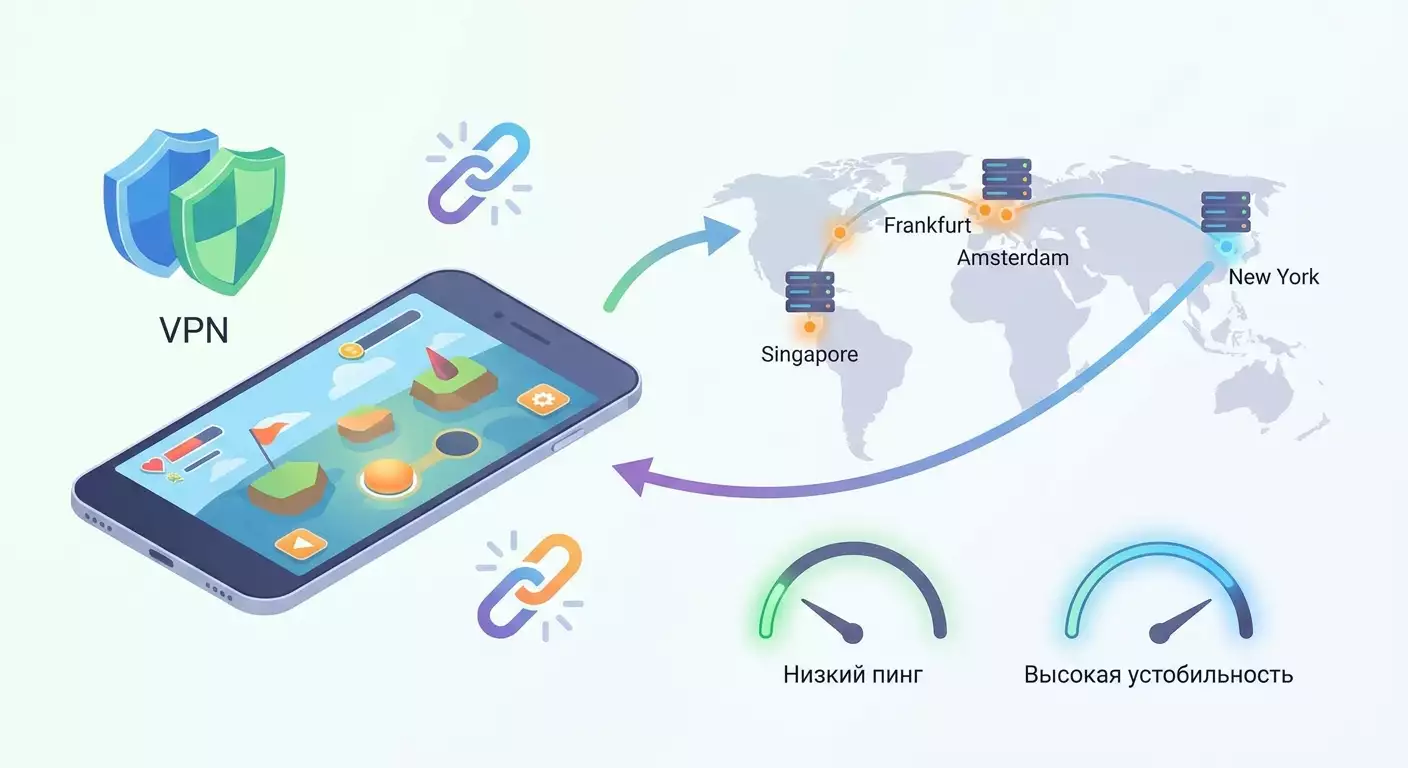
Содержание статьи
- Введение
- Предварительная подготовка
- Базовые понятия
- Шаг 1: определяем задачу и целевой регион
- Шаг 2: готовим устройство и делаем резервные копии
- Шаг 3: настраиваем vpn-профиль (wireguard, openvpn, ikev2)
- Шаг 4: переключаем регион магазина и устанавливаем игру
- Шаг 5: тонкая сетевая настройка для низкого пинга
- Шаг 6: запускаем игру, настраиваем аккаунт и проверяем пинг
- Шаг 7: подбираем идеальный город под ваши условия
- Шаг 8: безопасность и соответствие правилам игры
- Проверка результата
- Типичные ошибки и решения
- Дополнительные возможности
- Faq
- Заключение
Введение
В этом пошаговом гайде вы научитесь запускать и стабильно играть в Apex Legends Mobile (если игра доступна в вашем регионе или в рамках региональных тестов) и снижать пинг в Mobile Legends через VPN в 2026 году. Мы пройдем весь путь от подготовки устройства и выбора протокола до точной настройки маршрутизации, проверки задержки и устранения типичных ошибок. Итог для вас: предсказуемый запуск, понятный выбор сервера, минимально возможный пинг и четкая схема, как действовать, если что-то пошло не так.
Гайд рассчитан на начинающих, но внутри есть продвинутые разделы: настройка MTU, split tunneling и диагностика потерь пакетов. Вам не нужно быть сетевым инженером. Вы будете следовать коротким и понятным шагам. Каждый шаг проверяем и сопровождаем подсказками.
Заранее важно знать следующее. Официальная Apex Legends Mobile была закрыта в 2023 году. Однако периодически появляются региональные тесты и ограниченные запуски. Процедуры с VPN остаются полезными для доступа к тестам там, где они реально идут, и для быстрого матчинга на ближайших игровых серверах. В Mobile Legends VPN чаще всего используют для двух задач: зафиксировать стабильный маршрут с меньшим пингом и подключаться к серверам нужного региона (например, Сингапур для ЮВА или Франкфурт для Европы).
Сколько времени потребуется: базовая настройка займет 40–90 минут. В это входит резервное копирование, установка приложений, настройка VPN, переключение региона магазина (если вы пытаетесь установить игру, недоступную в вашем регионе), тесты скорости и пинга. Если вы пойдете в продвинутые настройки, заложите еще 20–30 минут.
Предварительная подготовка
Для успешной настройки вам понадобятся:
- Смартфон на Android 9+ или iOS 14+ (желательно свежее для лучшей совместимости с протоколами VPN и сетевыми оптимизациями).
- Стабильный интернет от вашего провайдера или сотового оператора. Предпочтительно Wi‑Fi 5 ГГц с устойчивым сигналом. Для 4G/5G избегайте «красных» зон покрытия.
- Аккаунт Google (Android) или Apple ID (iOS) с доступом к магазину приложений. Для смены региона магазина может потребоваться дополнительная карта или способ оплаты, привязанный к выбранной стране.
- Приложения: WireGuard (Android/iOS), OpenVPN Connect (Android/iOS), либо использование встроенного IKEv2-профиля (особенно на iOS и некоторых Android).
- Профиль VPN (учетные данные, конфиги .conf или .ovpn, параметры IKEv2) от вашего провайдера VPN.
Системные требования и рекомендации:
- Свободно 3–6 ГБ памяти для установки игр и кэша.
- Заряд аккумулятора не ниже 50% или подключенное питание.
- Отключенная экономия энергии для приложений VPN и игр.
Что нужно скачать/установить/настроить заранее:
- WireGuard: установите из Google Play или App Store. Приложение понадобится для протокола WireGuard, который в 2026 году чаще показывает наименьшую задержку и лучшую стабильность.
- OpenVPN Connect: установите на случай, если ваш провайдер дает профиль .ovpn или при необходимости обхода специфической фильтрации.
- Готовые конфигурационные файлы и ключи шифрования от вашего VPN-провайдера.
Резервное копирование:
- Android: убедитесь, что включена синхронизация Google Play Games для сохранений, а также резервная копия в аккаунте Google (Настройки → Google → Резервное копирование).
- iOS: включите iCloud Backup (Настройки → [ваше имя] → iCloud → Резервное копирование в iCloud → Включить). Убедитесь, что в резервную копию попадают данные нужных игр.
⚠️ Внимание: Если вы собираетесь менять регион магазина, заранее убедитесь, что у вас нет активных подписок, иначе система может не дать сменить регион. Сохраните важные скриншоты и сделайте резервную копию.
Совет: Перед началом закройте все фоновые приложения. Это уменьшит «шум» в тестах и ускорит настройку.
Базовые понятия
Чтобы вы понимали, «почему» за каждым шагом, разберем термины простым языком.
- Пинг (latency) — время в миллисекундах, за которое ваш пакет данных доходит до игрового сервера и возвращается ответ. Чем меньше, тем лучше. Для шутеров целиться на 30–60 мс, для MOBA комфортно до 70–90 мс.
- Джиттер (jitter) — разброс задержки. Низкий джиттер дает ровный игровой опыт. Если пинг прыгает с 40 до 150 мс, это заметнее, чем стабильно держать 70–80 мс.
- Потеря пакетов (packet loss) — часть данных не доходит до сервера. Потери в 1–2% уже ощущаются рывками и «телепортами» персонажа.
- Протокол VPN — набор правил, как трафик шифруется и доставляется. Для игр важны скорость, стабильность и «дружелюбие» к мобильно-сетевым реалиям.
- WireGuard — современный протокол, обычно дает меньшую задержку и быстрый коннект. Хороший выбор №1.
- OpenVPN — проверенная классика. В режиме UDP может быть быстрее, чем TCP. Помогает при сложной фильтрации трафика.
- IKEv2 — стабилен на мобильных сетях, быстро восстанавливает соединение при переключении Wi‑Fi/моб. сети.
- Split tunneling — выбор, какие приложения идут через VPN, а какие — мимо. Это снижает лишнюю нагрузку и уменьшает джиттер.
Ключевой принцип: ваш VPN‑маршрут должен вести к игровому серверу кратчайшим и наиболее «чистым» путем. Не всегда ближайший географически город — лучший. Важен реальный «путь» провайдеров (peering), а также загрузка узлов.
Совет: Если сомневаетесь между двумя городами, где пинг примерно одинаков, выбирайте тот, где джиттер ниже и меньше потерь. Стабильность важнее абсолютного минимума пинга.
Шаг 1: Определяем задачу и целевой регион
Цель этапа
Понять, зачем именно вам VPN: установить и запустить Apex Legends Mobile, если она доступна в других регионах; снизить пинг в Mobile Legends; играть с друзьями из конкретного региона. После шага вы знаете, какие города выбирать.
Детальная инструкция
- Откройте настройки вашей игры или официальный раздел поддержки, чтобы узнать, где находятся ближайшие игровые регионы. Для Mobile Legends это обычно Европа (часто Франкфурт, Амстердам, Варшава) или ЮВА (Сингапур).
- Проведите быстрый тест пинга без VPN. Используйте в игре встроенный индикатор или сторонние тесты к ближайшим городам. Цель — зафиксировать «исходник».
- Сопоставьте ваш город с ближайшими крупными узлами: если вы в Центральной Европе, разумный выбор — Франкфурт или Амстердам; если ближе к Скандинавии — Стокгольм или Хельсинки; если ближе к ЮВА — Сингапур.
- Для Apex Legends Mobile уточните актуальность запуска в нужном регионе. Если игры нет в вашем магазине, проверьте возможность установки через смену региона магазина. VPN поможет открыть страницу, но сам магазин может требовать местный способ оплаты или адрес.
- Сформулируйте цель письменно: например, «Играть в Mobile Legends с пингом до 60 мс через Франкфурт», или «Установить Apex Legends Mobile через регион Сингапур и войти в лобби».
⚠️ Внимание: Если в вашем регионе игра официально недоступна, учетная запись, способы оплаты и регламент магазина могут ограничить установку. VPN не всегда решает вопрос оплаты, но помогает показать нужный каталог и пройти сетевые проверки.
Совет: Заведите заметку «Целевой регион/город», «Протокол для теста №1», «Протокол для теста №2». Так будет проще сравнить результаты.
Ожидаемый результат
У вас есть список из 1–3 целевых городов и протоколов для теста. Например: Франкфурт (WireGuard), Амстердам (WireGuard), Варшава (IKEv2).
Возможные проблемы и решения
- Не знаете, где сервер игры. Решение: выберите географически центральные узлы региона, где у издателя традиционно стоят серверы. Для Европы начните с Франкфурта и Амстердама, для ЮВА — Сингапур.
- Игра показывает высокий пинг везде. Решение: возможно, локальный провайдер перегружен. Тестируйте в другое время суток или с Wi‑Fi 5 ГГц ближе к роутеру.
✅ Проверка: Вы записали целевые города и готовы к установке VPN‑профиля.
Шаг 2: Готовим устройство и делаем резервные копии
Цель этапа
Обновить систему, освободить место, отключить ограничения батареи и включить резервные копии. Это снизит риск вылетов и потери данных.
Детальная инструкция
- Обновите ОС: на Android откройте Настройки → Система → Обновление системы. На iOS откройте Настройки → Основные → Обновление ПО. Установите доступные патчи.
- Освободите 3–6 ГБ памяти. Удалите временные файлы, кеши и неиспользуемые приложения.
- Отключите «Экономию энергии» и ограничения фоновой активности для VPN и игры. Android: Настройки → Приложения → WireGuard/OpenVPN → Батарея → Без ограничений. iOS обычно сам управляет фоновой активностью, но убедитесь, что режим «Низкое энергопотребление» выключен.
- Включите резервные копии. Android: Настройки → Google → Резервное копирование → Включить. iOS: Настройки → [ваше имя] → iCloud → Резервное копирование → Создать сейчас.
- Установите WireGuard и OpenVPN Connect из магазина приложений.
Совет: Если у вас роутер с двумя диапазонами, используйте SSID 5 ГГц. Он обычно дает меньшую задержку и меньше помех.
✅ Проверка: Система обновлена, есть запас памяти, резервная копия создана, WireGuard и OpenVPN установлены.
Шаг 3: Настраиваем VPN-профиль (WireGuard, OpenVPN, IKEv2)
Цель этапа
Импортировать и активировать VPN-конфиги под целевые города. Научиться быстро переключать протоколы и узлы для сравнения.
Детальная инструкция: WireGuard (рекомендуется для старта)
- Откройте WireGuard. Нажмите «+» → «Импорт из файла или архива».
- Выберите конфигурационный файл .conf, выданный провайдером для целевого города (например, frankfurt.conf или singapore.conf).
- Проверьте в профиле Endpoint, PublicKey, AllowedIPs. Оставьте по умолчанию, если провайдер дал готовый конфиг.
- Сохраните профиль. Активируйте переключатель, чтобы подключиться. Разрешите добавлять VPN‑конфигурацию, если система запросит.
- Повторите для 1–2 запасных городов (Амстердам, Варшава). Это нужно для быстрой перекоммутации при нестабильности.
Инструкция: OpenVPN (альтернатива)
- Откройте OpenVPN Connect. Нажмите «Файл» → «Импортировать профиль».
- Выберите файл .ovpn для города. Введите логин/пароль, если требуется.
- Выберите UDP в профиле, если есть опция. UDP обычно быстрее для игр.
- Сохраните и подключитесь. Разрешите приложению создавать VPN‑профиль.
Инструкция: IKEv2 (особенно удобно на iOS)
- На iOS зайдите в Настройки → VPN → Добавить конфигурацию VPN → Тип: IKEv2.
- В поле «Описание» введите «Frankfurt IKEv2» или имя города.
- В «Сервер» укажите домен/адрес, выданный провайдером. Введите «Дистанционный ID» (если требуется) и ваш «Локальный ID» (обычно не обязателен).
- Выберите «Аутентификация» по логину/паролю или по сертификату согласно инструкциям провайдера.
- Сохраните и подключитесь. На Android IKEv2 может настраиваться через профиль системы или сторонние клиенты (strongSwan).
Совет: Начните с WireGuard на ближайшем к игре узле. Это часто дает лучший пинг. Дальше сравните с IKEv2 на том же городе. Оставьте тот, где джиттер и потери минимальны.
vpn.how предоставляет персональные VPN-серверы с выделенным IP. Доступные локации, протоколы и актуальная стоимость указаны на сайте и в кабинете. Способы оплаты и итоговая сумма отображаются при оформлении платежа. Выбрать сервер
Ожидаемый результат
Вы можете в 1–2 тапа переключать города и протоколы. Подключение устанавливается за 1–5 секунд, интернет работает стабильно.
Возможные проблемы и решения
- Профиль не импортируется. Решение: проверьте расширение файла и целостность. Повторно скачайте конфиг у провайдера.
- Подключение есть, но нет интернета. Решение: проверьте AllowedIPs в WireGuard (0.0.0.0/0, ::/0 для полного туннеля) или включите split tunneling.
- Разрывы каждые 2–3 минуты. Решение: переключитесь на IKEv2 для мобильной сети или поменяйте город на менее загруженный.
✅ Проверка: При активном VPN у вас открываются сайты, тест скорости отрабатывает, пинг к выбранному городу стабилен.
Шаг 4: Переключаем регион магазина и устанавливаем игру
Цель этапа
Если Apex Legends Mobile недоступна в вашем регионе, подготовить аккаунт и магазин к установке. Для Mobile Legends — убедиться, что игра установлена и обновлена.
Детальная инструкция: Android (Google Play)
- Подключитесь к VPN в целевом регионе (например, Сингапур для ЮВА или Франкфурт для ЕС).
- Очистите кеш Google Play: Настройки → Приложения → Google Play → Хранилище → Очистить кеш и Очистить данные.
- Откройте Google Play. Внизу появится новый региональный каталог (может потребоваться перезапуск телефона).
- Найдите игру: «Apex Legends Mobile» или «Mobile Legends: Bang Bang».
- Если игра доступна, нажмите «Установить». Если требуется способ оплаты местной страны, добавьте подходящий метод или выберите бесплатную установку без привязки (если доступно).
Детальная инструкция: iOS (App Store)
- Подключитесь к VPN в целевом регионе.
- Зайдите в Настройки → [ваше имя] → Медиа и покупки → Просмотреть аккаунт → Страна/регион → Изменить страну или регион.
- Выберите страну целевого региона (например, Сингапур или Германия). Примите условия. При необходимости введите адрес и индекс. Способ оплаты может потребоваться не всегда, но подготовьте вариант.
- Откройте App Store и найдите игру. Нажмите «Получить»/«Установить».
Совет: Иногда быстрее создать отдельный аккаунт под регион, чем менять страну у основного. Храните его данные в надежном месте.
⚠️ Внимание: Смена региона может временно ограничить доступ к вашим прошлым покупкам или подпискам. Оцените риски и используйте отдельный аккаунт при необходимости.
Ожидаемый результат
Игра установлена и запускается. Страница магазина доступна без ошибок региона. Если Apex Legends Mobile недоступна вообще, вы увидите соответствующее уведомление — в таком случае продолжайте с Mobile Legends и разделами про снижение пинга.
Возможные проблемы и решения
- Магазин не сменил регион. Решение: перезапустите устройство, почистите данные магазина, убедитесь, что VPN активен и IP соответствует.
- Требуется местная карта. Решение: используйте отдельный аккаунт с допустимым платежным методом или дождитесь региональных тестов, где установка бесплатна.
✅ Проверка: Игра установлена, обновления загружены, вход доходит до главного меню без ошибок сети.
Шаг 5: Тонкая сетевая настройка для низкого пинга
Цель этапа
Минимизировать задержку, джиттер и потери. Настроить split tunneling, DNS, MTU и выбрать лучший протокол под вашу сеть.
Детальная инструкция
- Выберите протокол: начните с WireGuard. Если у вас мобильная сеть и частые переключения вышек, протестируйте IKEv2. Если провайдер фильтрует UDP, пробуйте OpenVPN TCP как тест, но для игр предпочтительнее UDP/IKEv2/WireGuard.
- Настройте split tunneling (Android): Настройки VPN‑приложения → Split tunneling → Включить только игру (Mobile Legends, Apex Legends Mobile). Остальные приложения оставьте вне туннеля. Это снижает перегрузку канала.
- DNS: если провайдер предлагает быстрые DNS, добавьте их в конфиг WireGuard (опция DNS = 1.1.1.1, 1.0.0.1 или адреса провайдера). Избегайте медленных публичных DNS.
- MTU: по умолчанию WireGuard использует адекватное значение. Если наблюдаете «подвисоны» при хорошем пинге, уменьшите MTU на 20–40 байт (например, с 1420 до 1380) в конфиге WireGuard и проверьте стабилизацию.
- Стабилизируйте Wi‑Fi: поставьте канал 36/40/44 в 5 ГГц, отключите соседние перегруженные каналы, приблизьтесь к роутеру. На мобильной сети зафиксируйте LTE/5G при хорошем сигнале.
- Отключите автообновления и фоновые загрузки. На Android: Play Маркет → Настройки → Автообновление приложений → Не обновлять автоматически. На iOS: Настройки → App Store → Обновления приложений → Выкл.
Совет: Делайте по одному изменению за раз и тестируйте 5–10 минут в тренировочной комнате. Так вы поймете, что реально помогло.
Ожидаемый результат
Пинг и джиттер стабилизировались. Потери пакетов ушли или сократились до незаметных.
Возможные проблемы и решения
- Пинг стал ниже, но появились редкие «фризы». Решение: уменьшите MTU и проверьте DNS.
- Split tunneling недоступен на iOS. Решение: используйте профили, где весь трафик идет через VPN, но выключайте фоновые загрузки и синхронизации.
✅ Проверка: В игре пинг стабилен в течение 2–3 матчей, индикаторы сети зеленые или желтые без скачков в красную зону.
Шаг 6: Запускаем игру, настраиваем аккаунт и проверяем пинг
Цель этапа
Корректно войти в игру через выбранный VPN, привязать аккаунт и убедиться, что пинг соответствует целевому.
Детальная инструкция
- Подключите VPN к целевому городу (например, Франкфурт WireGuard).
- Запустите Mobile Legends. Перейдите в настройки и найдите индикатор пинга. Зафиксируйте значение в лобби и в матче.
- Если вы тестируете Apex Legends Mobile и доступ есть, дойдите до матча на тренировочном полигоне. Проверьте задержку и стабильность.
- Привяжите аккаунт к надежному способу (Google Play Games, Apple ID, Facebook) для сохранения прогресса.
- Сыграйте 2–3 быстрых матча и запишите средний пинг/джиттер. Повторите для другого города/протокола, если нужно сравнение.
Совет: Тестируйте в одно и то же время суток для корректного сравнения. Ночная сеть может быть спокойнее, чем прайм‑тайм.
Ожидаемый результат
Вы уверенно заходите в лобби и матчи, задержка соответствует целевому уровню, а разрывы отсутствуют.
Возможные проблемы и решения
- Игра долго ищет матч. Решение: выберите более «центральный» город региона (например, Амстердам вместо Варшавы) или отключите/включите VPN заново.
- Античит ругается на IP. Решение: используйте персональный IP от провайдера без shared‑адресов. Это снижает вероятность срабатывания массовых фильтров.
✅ Проверка: Средний пинг стабильно держится в пределах вашей цели (например, 50–70 мс), без скачков и потерь.
Шаг 7: Подбираем идеальный город под ваши условия
Цель этапа
Из трех выбранных городов выбрать один главный и второй запасной, который дает наилучший баланс пинга и стабильности.
Детальная инструкция
- Сделайте серию матчей: по 3–4 на каждом городе. Записывайте средний пинг, макс. скачок и были ли разрывы.
- Сравните результаты. Если разница в пинге до 5–7 мс, выбирайте по меньшему джиттеру и отсутствию потерь.
- Запомните время суток, когда хуже всего. Подберите альтернативу: например, если вечером Франкфурт перегружен, переключайтесь на Амстердам.
Совет: Для ЮВА чаще всего лучший выбор — Сингапур. Для Европы — Франкфурт или Амстердам. Для Восточного побережья США — Нью‑Йорк, для Западного — Сан‑Хосе. Для Скандинавии — Стокгольм/Хельсинки. Для ЦВЕ — Варшава/Франкфурт.
Ожидаемый результат
У вас есть основной и резервный города, между которыми вы быстро переключаетесь в проблемные часы.
Возможные проблемы и решения
- Пинг скачет на всех городах. Решение: проверьте Wi‑Fi канал, смените частоту 2,4 ГГц на 5 ГГц, протестируйте мобильную сеть или другого провайдера.
✅ Проверка: В ходе тестов вы нашли связку «город + протокол», которая дает стабильную игру в любое время суток.
Шаг 8: Безопасность и соответствие правилам игры
Цель этапа
Играть безопасно, не терять прогресс и не провоцировать санкции со стороны античитов.
Детальная инструкция
- Привяжите аккаунт к двум независимым источникам (например, Google и Facebook). Так вы не потеряете прогресс при сбоях.
- Не меняйте регионы слишком часто в короткий промежуток времени. Это может выглядеть подозрительно.
- Избегайте общих «шумных» IP с тысячами пользователей. Используйте персональные конфиги с отдельным IP.
- Следите за официальными правилами. Если разработчик запрещает конкретные обходы, учитывайте риски и принимайте взвешенные решения.
Совет: Ведите журнал настроек. Отмечайте, когда и что меняли. Если что-то пошло не так, вы быстро откатитесь к рабочему состоянию.
Ожидаемый результат
Ваш аккаунт защищен, риск санкций минимален, вы понимаете, какие изменения безопасны, а какие — нет.
Возможные проблемы и решения
- Подозрительная активность по мнению системы. Решение: зафиксируйте один регион на 1–2 недели, избегайте резких переключений.
- Потерян вход в аккаунт. Решение: используйте резервную почту, восстановление через привязанные соцсети и заранее сохраненные коды.
✅ Проверка: В настройках безопасности включена двухфакторная защита, привязаны резервные способы входа, вы не меняли регион 24–48 часов без необходимости.
Проверка результата
Чек‑лист, что должно работать:
- VPN подключается за 1–5 секунд, не обрывается.
- В игре пинг и джиттер в целевом диапазоне.
- Игра устанавливается и запускается (для Apex — при наличии регионального доступа).
- Split tunneling работает (на Android), фоновые загрузки не мешают.
- Аккаунт привязан, резервные копии включены.
Как протестировать:
- Сделайте 5‑минутный замер в тренировочной комнате и 2 быстрых матча. Запишите средний пинг и максимальный скачок.
- Сравните 2–3 города и 2 протокола. Остановитесь на лучшей связке.
Показатели успеха:
- Пинг для MOBA до 70–90 мс стабильно, для шутеров — 30–60 мс (или лучший из доступных).
- Джиттер низкий, потери 0–1% максимум.
- Нет вылетов и ошибок соединения.
✅ Проверка: Если показатели в норме, вы завершили настройку и можете играть без сюрпризов.
Типичные ошибки и решения
- Проблема: «VPN включен, но интернет не работает». Причина: неверные AllowedIPs или конфликт DNS. Решение: в WireGuard установите AllowedIPs 0.0.0.0/0 и ::/0, пропишите быстрый DNS (1.1.1.1/1.0.0.1) или DNS провайдера.
- Проблема: «Пинг низкий, но игра «фризит»». Причина: фрагментация пакетов, перегруженный Wi‑Fi. Решение: уменьшите MTU на 20–40 байт, переключитесь на 5 ГГц, выберите свободный канал.
- Проблема: «Античит ругается на VPN». Причина: shared‑IP массового провайдера попал в фильтры. Решение: используйте персональный сервер с выделенным IP, избегайте часто используемых «попсовых» узлов.
- Проблема: «Нельзя сменить регион магазина». Причина: активные подписки/некорректные платежные данные. Решение: отмените подписки и дождитесь их окончания, временно используйте отдельный аккаунт.
- Проблема: «Подключение рвется каждые несколько минут». Причина: нестабильная мобильная сеть или слабый Wi‑Fi. Решение: смените протокол на IKEv2, приблизьтесь к роутеру, протестируйте другой город.
- Проблема: «Игра ищет матч слишком долго». Причина: малое число игроков в регионе. Решение: выберите город более центрального хаба региона, отключите и включите VPN для обновления маршрута.
- Проблема: «Высокий джиттер вечером». Причина: перегрузка узла или вашего провайдера. Решение: используйте резервный город на вечерние часы, отложите тяжелые загрузки в сети.
Дополнительные возможности
Продвинутые настройки:
- Политика маршрутизации по портам: в некоторых клиентах можно отправлять игровой трафик по VPN, а стрим/чат — напрямую. Это тонкая настройка, требует аккуратности.
- Автоматизация: на Android используйте автоматизацию (например, через системные возможности) для включения VPN при запуске игры.
- Диагностика трассировки: выполните traceroute до игрового адреса c VPN и без. Сравните количество хопов и задержки на каждом участке.
Оптимизация под роутер:
- Если дома играют несколько человек, настройте VPN на роутере с поддержкой WireGuard/OpenVPN. Назначьте приоритет трафика игры (QoS) по порту или приложению.
- Установите стабильные DNS на роутере, чтобы все устройства получали быстрые ответы.
Что еще можно сделать:
- Следить за статусами узлов у вашего провайдера. Если есть индикатор нагрузки по городам, выбирайте «зеленые» узлы.
- Проверить альтернативный оператор связи. Иногда смена SIM‑карты на другого оператора уменьшает джиттер.
Совет: Раз в 1–2 месяца пересматривайте выбранные узлы. Маршрутизация в Интернете меняется, и иногда соседний город внезапно станет лучше.
FAQ
Вопрос: Можно ли играть в Apex Legends Mobile через VPN в 2026 году? Ответ: Официальная версия была закрыта в 2023, но доступны региональные тесты/запуски время от времени. Если в вашем регионе нет доступа, VPN поможет подключиться к тестовым регионам, при условии, что они действительно активны.
Вопрос: Какой протокол выбрать для минимального пинга? Ответ: Начните с WireGuard. Если у вас мобильная сеть и часто меняется покрытие, попробуйте IKEv2. OpenVPN UDP — запасной вариант при специфической фильтрации.
Вопрос: Какой город выбрать в Европе для Mobile Legends? Ответ: Чаще всего Франкфурт или Амстердам. В ЦВЕ — Варшава. Выберите 2–3 и сравните в матчах.
Вопрос: Почему shared‑VPN часто банят? Ответ: Тысячи игроков делят один IP, античиты вручную или автоматически помечают такие адреса. Персональный IP снижает этот риск.
Вопрос: Поможет ли VPN на слабом Wi‑Fi? Ответ: VPN не исправит плохой радиоканал. Сначала стабилизируйте Wi‑Fi: 5 ГГц, свободный канал, близость к роутеру.
Вопрос: Нужен ли split tunneling? Ответ: На Android это полезно. Игра идет по VPN, а остальной трафик — мимо. Так меньше нагрузка и джиттер.
Вопрос: Что делать, если пинг днем нормальный, а вечером скачет? Ответ: Держите резервный город. Вечером переключайтесь на менее загруженный узел.
Вопрос: Как понять, что дело в MTU? Ответ: Если пинг низкий, но есть подвисания, попробуйте уменьшить MTU на 20–40 байт. Если стало лучше, вы нашли узкое место.
Вопрос: Нужно ли менять регион магазина навсегда? Ответ: Нет. Лучше отдельный аккаунт для региона. Так вы не затронете свои подписки и покупки на основном аккаунте.
Вопрос: Какой способ оплаты подойдет для регионального магазина? Ответ: Это зависит от страны. Иногда достаточно установить бесплатно. В иных случаях нужна местная карта или альтернативный способ.
Заключение
Мы пошагово разобрали, как в 2026 году настроить и использовать VPN, чтобы играть в Apex Legends Mobile (если она доступна в целевом регионе) и стабильно снижать пинг в Mobile Legends. Вы прошли подготовку устройства, выбрали целевой город, настроили VPN‑протокол (WireGuard, OpenVPN, IKEv2), при необходимости переключили регион магазина, а затем добились стабильного пинга с помощью split tunneling, корректного DNS и оптимального MTU. Вы научились тестировать города, сравнивать протоколы, держать резервные варианты и работать с безопасностью аккаунта.
Что делать дальше: закрепите рабочую связку «город + протокол» и занесите ее в заметки. Поддерживайте порядок на устройстве: обновления по расписанию, контроль фоновых задач и резервные копии. Если увидите новую возможность регионального доступа к Apex Legends Mobile, повторите шаги смены региона магазина и установку. Для Mobile Legends периодически перепроверяйте, не улучшился ли маршрут к соседнему городу. Ваш ориентир — не только пинг, но и низкий джиттер и отсутствие потерь.
Куда развиваться: попробуйте запускать VPN на роутере, чтобы разгрузить смартфон и стабилизировать всю домашнюю сеть. Освойте базовую диагностику трассировок, чтобы понимать, где возникают задержки. И помните главную практику: используйте персональные VPN‑конфигурации и протоколы, которые лучше подходят вашему типу сети. Тогда игры будут радовать стабильностью, а пинг — предсказуемостью. Удачи в матчах!
Издатель: vpn.how