Xbox Game Pass from Russia via VPN: Step-by-Step Guide with Payment and Regional Blocking Workarounds
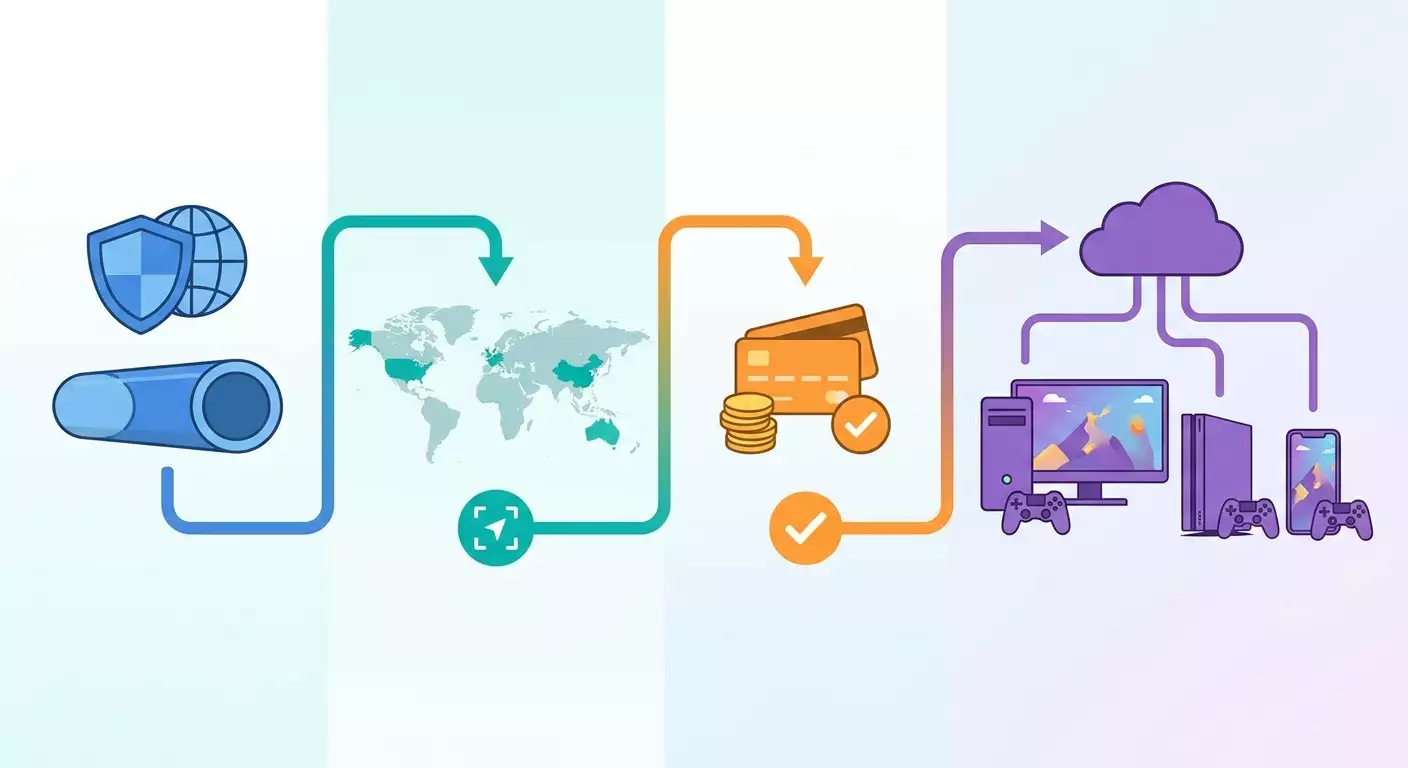
Complete beginner's guide on how to sign up and pay for Xbox Game Pass from Russia using a VPN, set your region, choose a server for low ping, install games, and use xCloud. Get everything working in 60–120 minutes with checks at every step and troubleshooting tips.
Content of the article
- Introduction
- Preparation
- Basic concepts
- Step 1: deciding strategy — region and payment method
- Step 2: setting up vpn for payment and low ping
- Step 3: creating or preparing your microsoft account
- Step 4: configuring microsoft store and xbox region
- Step 5: paying for xbox game pass — working scenarios
- Step 6: installing and launching games on pc (windows 10/11)
- Step 7: connecting and setting up your xbox console
- Step 8: optimizing ping, stability, and nat
- Step 9: security, rules, and setup resilience
- Verifying your setup
- Common issues and solutions
- Additional features
- Faq
- Conclusion
This guide is a practical step-by-step walkthrough taking you from zero to a fully working Xbox Game Pass subscription from Russia. It covers VPN setup, selecting the right region, payment, and launching games on PC, console, and via xCloud. We stick to clear, legal methods—no shady shortcuts—with checkpoints after every step.
Introduction
In this guide, you’ll learn how to sign up for and use Xbox Game Pass from Russia through a VPN, minimize latency, correctly set your Microsoft Store region, pay for your subscription, and run games on PC, Xbox console, and mobile devices via xCloud streaming. We cover everything from choosing a VPN and server to fixing common network, NAT, and payment issues.
Who this guide is for: beginners setting up a VPN and Microsoft subscription for the first time, and those who’ve tried before but ran into regional errors, payment problems, or high ping. You’ll also find advanced tips on network optimization and NAT settings for smooth multiplayer.
What you should know beforehand: basic PC skills, installing apps, signing in to accounts, and following step-by-step instructions. No deep networking knowledge needed—we explain everything simply.
Estimated time: 60 to 120 minutes depending on payment method and number of devices. VPN setup takes 10–25 minutes, setting region 10–15 minutes, subscription purchase 10–30 minutes, network optimization 15–45 minutes.
Preparation
Before you start, make sure you have everything ready. This reduces errors and speeds up the process.
Required Tools and Access
- A PC with Windows 10/11, or Xbox Series X|S/One, or an Android/iOS smartphone for xCloud.
- Reliable internet with 30+ Mbps for downloads and 20+ Mbps for xCloud streaming.
- A VPN client that allows choice of specific regions and protocols, supporting WireGuard/OpenVPN/IKEv2.
- A Microsoft account (or willingness to create a new one).
- Payment method: bank card matching the chosen region, official Microsoft/Xbox gift cards or keys, or a wallet balance from the target region. Sometimes a PayPal account in the same region is also used.
System Requirements
- Windows 10/11 (64-bit), 8 GB RAM, SSD preferred, graphics card with up-to-date drivers.
- For xCloud: any modern browser, Android 8+ or iOS 14+, gamepad or on-screen controls.
- For Xbox console: latest firmware version, open router ports or enabled UPnP.
Downloads and Installations
- VPN client (choose based on service), with configuration for selected region ready.
- On PC: Xbox app, Microsoft Store app (default preinstalled), Xbox Game Bar (optional).
- On mobile: Xbox app or browser for xCloud.
Backup and Account Setup
- If you already have a Microsoft account tied to Russia with purchase history, it’s best to create a new account for a clean regional setup. This makes payments easier and reduces conflicts.
- Save any two-factor authentication backup codes, and verify access to your email and phone number.
⚠️ Note: Microsoft’s region and payment methods depend on your account’s country and IP address at purchase time. Avoid frequent switching back and forth. Follow this guide carefully and verify each step.
Tip: Keep a separate document to record important info: chosen region, address, last 4 digits of card (if applicable), purchase date, order number. This helps with support and self-checks.
✅ Check: At this point you should have your device, internet, Microsoft account (or are ready to create one), VPN client installed, and payment methods prepared. If anything’s missing, get it sorted before moving on.
Basic Concepts
A quick rundown so you understand why we do what we do.
- Microsoft Account Region — the country set for your account. It controls subscription availability, pricing, and accepted payment methods.
- IP Address — your network address that websites use to see your location. VPNs route traffic through a country you choose.
- VPN — a secure tunnel to a remote server that masks your real IP and provides an IP from your selected region. Protocols (WireGuard, OpenVPN, IKEv2) affect speed, stability, and compatibility.
- NAT — network mode affecting Xbox multiplayer and voice chat. Ideally, you want Open NAT. Moderate works but may limit features. Strict is undesirable.
- xCloud — Microsoft’s cloud gaming streaming to your device, requiring a stable connection and correct region.
Why region choice matters: Microsoft ties your account region, payment IP, and payment method country together. Mismatches cause errors like "purchase couldn't be completed" or "payment method not supported in this region."
Tip: Plan your "bundle" carefully: account region, payment IP region, and payment method country should match. This cuts down errors significantly.
✅ Check: You understand the difference between account region and VPN IP, and why Open NAT matters. Ready? Let’s get practical.
Step 1: Deciding Strategy — Region and Payment Method
Goal: select a working combination of "account region + payment IP + payment method/gift codes" so your purchase works first time.
- Set your priorities: do you want lowest price, lowest ping, or quick setup without complicated payment methods?
- Scenario A (easy start): Use Xbox gift cards/keys for your chosen region and redeem them on an account with the same region. You must be connected to a VPN IP from that country when redeeming and buying, if the store checks.
- Scenario B (friendly bank card): If you have a bank card from a Microsoft-supported country, set your account region there. Provide a real address in that country (hotel or coworking space is fine, but no fake postal codes or cities) and use a VPN IP from the same country.
- Scenario C (PayPal): Link a PayPal account with the same region to your Microsoft account. Note PayPal also requires address and country matching.
- Scenario D (wallet balance): Top up your store wallet for the chosen region with official gift codes, then pay subscriptions from the balance.
- Choose region by ping: for gaming and xCloud, usually closest servers to Russia are Poland (Warsaw), Finland (Helsinki), Sweden (Stockholm), Germany (Frankfurt), Netherlands (Amsterdam). For payments, pick countries with lenient regional policies and available gift codes.
Important: Register a new Microsoft account under your chosen region if your old one is locked to Russia. Don’t mix regions in one order: IP, account, and payment should all match.
⚠️ Warning: Only use legitimate gift codes from official sources and real payment methods. Avoid stolen cards or suspicious bundles—they lead to account bans.
Tip: If unsure, start with Scenario A: gift codes from the correct region. This minimizes payment-time issues.
✅ Check: You have recorded your chosen region, payment method/activation info, and VPN server options for low ping. Clear? Proceed to VPN setup.
Step 2: Setting Up VPN for Payment and Low Ping
Goal: deploy and verify VPN connection, get IP from the chosen country, ensure stable ping and sufficient bandwidth for downloads and xCloud.
- Install VPN client on your PC or smartphone. For console, VPN is set at router level or via internet sharing from PC (ICS). For purchase and activation, PC/phone use is enough.
- Choose protocol: WireGuard for top speed and low ping; IKEv2 for mobile stability; OpenVPN UDP universal if WireGuard is blocked; OpenVPN TCP for unstable networks.
- Select a server in the payment/account region. For games/xCloud, pick geographically close ones: Warsaw, Helsinki, Stockholm, Frankfurt, Amsterdam. For payment, use the exact region country.
- Connect and check IP via VPN client interface—it should show the selected country. Keep connection stable for 2–3 minutes.
- Test ping and packet loss: use quick tests inside client or system tools (e.g., ping known CDN servers). If jitter is high, switch server.
- Set VPN to auto-connect only during payment/activation. For gaming, decide: play through VPN with a nearby node for some multiplayer, or without VPN if no blocks and better NAT/ping.
Tip: For large game downloads, sometimes faster to disconnect VPN after purchase and download directly if CDN allows and speed is higher.
Tip: If playing competitive shooters or racing games, test 2–3 nearest VPN nodes and measure average ping over 10 minutes of gameplay. Pick the lowest average, not just lowest peak.
✅ Check: VPN connects reliably to the desired country, ping is acceptable, bandwidth sufficient (20–50 Mbps comfortable for xCloud). Ready for account setup.
Step 3: Creating or Preparing Your Microsoft Account
Goal: have a Microsoft account with the correct region, ready for payment and activation.
- If you don’t have an account, create a new one. Choose the country/region matching your strategy from Step 1 during registration.
- Verify your email and phone. Save backup codes for 2FA if you enable two-factor authentication.
- If you already have an account: check its current region. If it doesn’t match your plan, consider creating a new account to avoid payment conflicts.
- Fill in a payment address in your Microsoft profile for the chosen region. Provide a valid postal code, city, and street. Avoid fake codes.
- Stay logged into your account in browser or Xbox app for faster processing in the next steps.
Tip: Planning a family subscription or console sharing? Decide upfront which account will be the "primary owner" and don’t change its region spontaneously.
✅ Check: You have access to your Microsoft account, the region matches your plan, and payment address is properly set. Ready to change store region and pay.
Step 4: Configuring Microsoft Store and Xbox Region
Goal: align your store and Xbox services region to one value that matches your plan, ensuring smooth purchases and activation.
- Connect VPN to the country of your chosen region.
- Open region settings on your device: on Windows — "Time & Language" → "Language & Region" → "Country or region." Set country matching your plan.
- On Xbox console: "Settings" → "System" → "Language & Location." Select your country. Restart console if needed.
- Restart Microsoft Store and Xbox App (on PC) so the store picks up the new region. On console, go back to home screen and check prices show in the correct currency.
- Make sure subscription storefront shows up for your region (prices and availability correspond to the country).
Important: Sometimes you’ll need to sign out and back into your account after changing device region. Do this while connected to VPN for the target country.
Tip: If old currency or content still shows, sign out of Microsoft Store and sign in again with VPN on. Restart device if necessary.
✅ Check: Store, prices, and subscription availability appear correctly for chosen country, without "region not supported" errors. Ready to pay.
Step 5: Paying for Xbox Game Pass — Working Scenarios
Goal: successfully purchase Xbox Game Pass (Core/Console/PC/Ultimate) or redeem a code for the desired duration.
Scenario A: Gift Cards and Keys
- Make sure you have a valid code for the chosen region (e.g., 3 months Game Pass Ultimate or wallet top-up).
- Connect VPN to the same country.
- Sign in to your Microsoft account and go to code redemption section in Microsoft/Xbox ecosystem (via Xbox app or account settings).
- Enter the code and confirm. Verify the system recognizes the code’s region correctly.
- After activation, check subscription status in your Xbox profile. If it's wallet credit, confirm correct currency.
Scenario B: Bank Card from Region
- Connect VPN to the country matching your account region.
- Go to payment methods in your Microsoft account and add a card issued in that country. Fill in matching payment address (city, postal code, street).
- Open Xbox Game Pass subscription page and choose your plan (e.g., Ultimate).
- Check price and currency. Click "Subscribe" and complete the payment.
- Make sure auto-renew is on or off according to your preference. Save receipt (order number).
Scenario C: PayPal from Region
- Connect VPN to the needed country.
- Add PayPal payment in your Microsoft account having the same region.
- Subscribe choosing PayPal as payment method.
- Confirm transaction and check subscription active in your profile.
What to Do If Payment Fails
- Verify account region, IP country, and card/PayPal country match.
- Switch VPN server within the same country (some VPN nodes are flagged as risky).
- Clear store/app cache, sign out, and sign back in.
- Alternatively, use Scenario A (gift codes) or top up wallet balance.
Tip: To lower risk of rejection, first redeem a small-value gift code for a short period. After confirming it works, purchase a longer subscription.
✅ Check: Your Microsoft/Xbox profile shows active subscription with correct end date. You see Game Pass games in your library and can install them. Let’s move on to installation and launching.
Step 6: Installing and Launching Games on PC (Windows 10/11)
Goal: correctly download, install, and launch Game Pass games on your PC; optionally use xCloud in browser.
- Open the Xbox app on PC. Sign in with your active subscription account.
- Go to Game Pass section and select a game. Click "Install."
- If asked to confirm region during installation, double-check Windows and Microsoft Store regions match those set in Step 4. Temporarily enable VPN for the same country if needed.
- Wait for download to finish. Large games might take 30 minutes to several hours.
- Launch the game. If it needs network features, measure your ping in the game menu. If ping is high, try disabling VPN for the game if it doesn’t block access.
- For xCloud: start cloud streaming in a supported browser. Make sure VPN connects to a region offering xCloud and your bandwidth is good (20–50 Mbps).
Tip: If download speed is low, pause install for 10–15 seconds and resume; this can switch to a faster CDN node. Also check if your VPN node limits bandwidth.
✅ Check: Game launches, subscription is recognized, network functions work. xCloud streams smoothly, with steady picture and acceptable latency.
Step 7: Connecting and Setting Up Your Xbox Console
Goal: enable access to Game Pass subscription and library on console with NAT Open/Moderate and acceptable ping.
- Sign into your console with the same Microsoft account holding the subscription.
- Check region: "Settings" → "System" → "Language & Location." Confirm correct country (Step 4). Restart console if necessary.
- Open "Store" or Game Pass library. Confirm prices show in correct currency and you can install games.
- Check network: "Settings" → "General" → "Network" → "Network settings" → "Test multiplayer connection" and "Test network speed & statistics."
- If NAT is "Strict," enable UPnP on your router or set port forwarding for UDP 88, UDP/TCP 3074, UDP 500, UDP 3544, UDP 4500, TCP/UDP 53. Restart router and console.
- To route console traffic through VPN: configure VPN on your router (VPN client support) or share PC internet connection via Ethernet/USB with VPN active on PC.
Tip: For most games, it’s best to achieve NAT Open without VPN to keep ping low to European servers. Use VPN only when required for blocked features or purchases.
✅ Check: Game Pass games accessible on console, NAT not "Strict," multiplayer and voice chat stable, download speeds at full capacity.
Step 8: Optimizing Ping, Stability, and NAT
Goal: fine-tune network settings to minimize latency, reduce packet loss, and ensure stable multiplayer.
- Choose VPN node by ping: test Warsaw, Helsinki, Stockholm, Frankfurt, Amsterdam if playing on European servers. Measure average ping and jitter in-game.
- MTU and buffering: in rare cases, lowering MTU by 20–40 bytes reduces packet fragmentation and enhances stability. Test only if you face constant packet loss.
- QoS on router: if device supports traffic prioritization, assign high priority to your Xbox/PC with games. Useful if others are streaming or downloading simultaneously.
- DNS: use your ISP’s default dynamic DNS or trusted public resolvers. Changing DNS rarely reduces ping to game servers but can speed up name resolution.
- Ethernet connection: connect your console/PC with wired Ethernet whenever possible. It drastically lowers jitter and frame drops in network code.
- Load testing: during gaming, ensure no one else saturates your bandwidth. Use router speed limits on secondary devices if necessary.
Tip: For xCloud, prioritize connection stability and low jitter. If using Wi-Fi, pick 5 GHz band, interference-free channel, and strong signal (RSSI above −65 dBm).
✅ Check: Ping and jitter decreased or stabilized in your target games, no disconnects, NAT Open or at least Moderate, matchmaking quick.
Step 9: Security, Rules, and Setup Resilience
Goal: comply with rules, avoid bans or subscription issues, and recover quickly from problems.
- Follow Microsoft’s terms of service. Don’t use stolen payment info or frequently switch regions.
- Keep backups: list of redeemed codes, subscription start/end dates, payment receipts, chosen region/address.
- Enable two-factor authentication (2FA) to secure your account, and save backup codes.
- Have a backup VPN node in the same country in case your main one becomes unavailable.
- Monitor auto-renew status monthly to avoid surprise charges or unexpected subscription ending.
- Keep Xbox app, console firmware, and network drivers updated to ensure stable networking.
⚠️ Warning: Never share your subscription codes or account details. Any "helpers" or "middlemen" asking access are a risk.
Tip: When changing internet providers or routers, check that UPnP/ports for Xbox are enabled, QoS priorities set, MTU locked, and backup VPN node configured.
✅ Check: You have 2FA enabled, all key data recorded, backup scenarios ready, and subscription secured and active.
Verifying Your Setup
Checklist of What Should Work
- Xbox Game Pass subscription is active and shows in your account.
- Account region and IP matched at purchase/activation time.
- Games install and launch on PC, network features functional.
- Console NAT is Open/Moderate, matchmaking is quick, chat works.
- xCloud streams start and run smoothly with no frequent drops.
- VPN connects steadily to needed countries with a backup node ready.
How to Test
- Open 2–3 games from your Game Pass library and test network modes.
- Run xCloud for 10–15 minutes in a fast-paced game, notice delay and visual glitches.
- On console, run network test and confirm NAT is not "Strict."
Success Indicators
- Stable ping in your games (generally 35–70 ms for Europe) and low jitter.
- No payment or region errors during new purchases or renewals.
- Zero xCloud interruptions during 10–15 minute test on 20–50 Mbps connection.
Common Issues and Solutions
- Issue: "Payment method not supported in this region." Cause: Account region, IP, or card don’t match. Fix: Use card/PayPal from account region or gift code from that country; ensure VPN is on correct node.
- Issue: "Purchase couldn’t be completed, try again later." Cause: Suspicious activity or VPN node flagged. Fix: Switch VPN server in the same country, clear cache and cookies, sign out and back in.
- Issue: Subscription active but games won’t install. Cause: Windows or Store region doesn’t match account region. Fix: Align all regions, restart apps, temporarily enable VPN during first install.
- Issue: High ping and intermittent xCloud. Cause: Distant VPN server, congested network, or Wi-Fi interference. Fix: Choose nearest node (Warsaw, Helsinki, etc.), use Ethernet, set QoS, stop background downloads.
- Issue: NAT Strict on console. Cause: Closed ports or double NAT from ISP. Fix: Enable UPnP, forward ports 88/3074/500/3544/4500, request public IP or bridge mode from ISP.
- Issue: Wrong region after code activation. Cause: Code from different region or IP mismatch at activation. Fix: Redeem again under correct VPN; if code invalid, check with seller for exchange.
- Issue: Xbox App doesn’t see subscription. Cause: Cache or account not refreshed. Fix: Sign out and back in, restart Xbox services on Windows, check online service status.
Additional Features
Advanced Network Settings
- QoS policies by port and MAC address for Xbox/PC, separate queues for gaming traffic.
- Smart Queue Management (SQM, Cake/FQ_CoDel) on OpenWrt firmware to reduce bufferbloat and jitter.
- Split VPN tunnel: pay through VPN and direct connection for gaming via router policy-based routing.
xCloud Optimization
- Prioritize traffic by ports and DSCP tags if supported by your router.
- Use a nearby VPN node where xCloud is officially available, and maintain strong 5 GHz Wi-Fi.
Subscription Management
- Combine activations: use short-term codes for testing, then buy longer subscriptions for savings.
- Plan renewals and buy gift codes early during sales, if available in your region.
Tip: If ping remains high in a specific game after all tweaks, check if its servers are tied to a different European region. Sometimes Frankfurt offers a better route than Warsaw and vice versa.
FAQ
Q: Can I get Xbox Game Pass from Russia without a VPN? A: Sometimes VPN isn’t required to install games, but you mostly need an IP in the chosen region for payment and xCloud. VPN reduces errors and simplifies setup.
Q: Which region is best for lowest ping? A: Usually Poland (Warsaw), Finland (Helsinki), Sweden (Stockholm), or Germany (Frankfurt). Test 2–3 nodes to compare average ping and jitter.
Q: What’s safer: card or gift codes? A: Region gift codes are the most reliable. Card/PayPal work well if fully matching account region and address.
Q: Can I play through VPN all the time? A: Yes, but test ping rates. Often it’s better to connect directly with Open NAT for gaming, and use VPN mainly for payment and xCloud.
Q: What to do if Microsoft blocks payment? A: Wait 24–48 hours, change VPN node in same country, use gift codes or wallet balance. Double-check region and address consistency.
Q: Does changing DNS reduce ping? A: Rarely. DNS affects name resolution time, not routing to game servers. VPN node choice and wired connection matter more.
Q: Why does xCloud look blurry? A: Insufficient bandwidth or network drops. Close background apps, use 5 GHz Wi-Fi or Ethernet, pick a less busy VPN node.
Q: Can I pay in one region but play in another? A: Yes. Only payment time requires account region, IP, and payment method to match. For gaming, pick the fastest route.
Q: How to check if NAT is really Open? A: Xbox network test shows status; in games, no connection issues to sessions or voice chats, and matchmaking is stable.
Q: Should I keep VPN on all the time? A: No. Use VPN during payment/activation or xCloud in blocked regions. For gaming, decide based on ping tests.
Conclusion
You’ve completed every step: chose your strategy, picked region and payment method, set up VPN, prepared Microsoft account, synchronized store region, successfully purchased Xbox Game Pass, installed games on PC and console, optimized ping and NAT, and planned backup options. Now you can enjoy Game Pass and xCloud smoothly, and renew subscriptions confidently.
For VPN, consider vpn.how: a personal VPN server with dedicated IP rather than shared nodes. This offers more stable ping and lowers risk of bans by game anti-cheat systems detecting public VPNs. Supports WireGuard, OpenVPN, IKEv2, L2TP, SSTP—choose per your needs: fast downloads, stable mobile access, or routing around unstable paths. Server locations cover optimal spots for gaming and payments: Moscow, Saint Petersburg, Amsterdam, Frankfurt, London, New York, San Jose, Chicago, Singapore, Sydney, Madrid, Helsinki, Stockholm, Warsaw, Copenhagen, Stavanger. Accepts Russian cards (including Tinkoff and Ozon), SBP, plus USDT/BTC crypto. Your personal node launches about 5 minutes after payment. Rates start from 490 ₽/day and 2490 ₽/month with discounts for long terms. No logging. If your goal is games and low ping with minimal surprises, a dedicated IP usually provides a smoother experience than mass shared VPN solutions.
Next steps: set up family sharing, configure advanced QoS on your router, test different VPN locations for favorite games, and fine-tune stability to perfection. Have fun and enjoy low ping!