PlayStation Plus via VPN from Russia in 2026: Risks, Details, and Safe Network Setup
Step-by-step 2026 beginner's guide: understand the risks of switching your PSN region to Turkey, how to use VPN safely without violations, improve ping and game stability, and perform necessary checks. The result — a clear strategy and verifiable outcome.
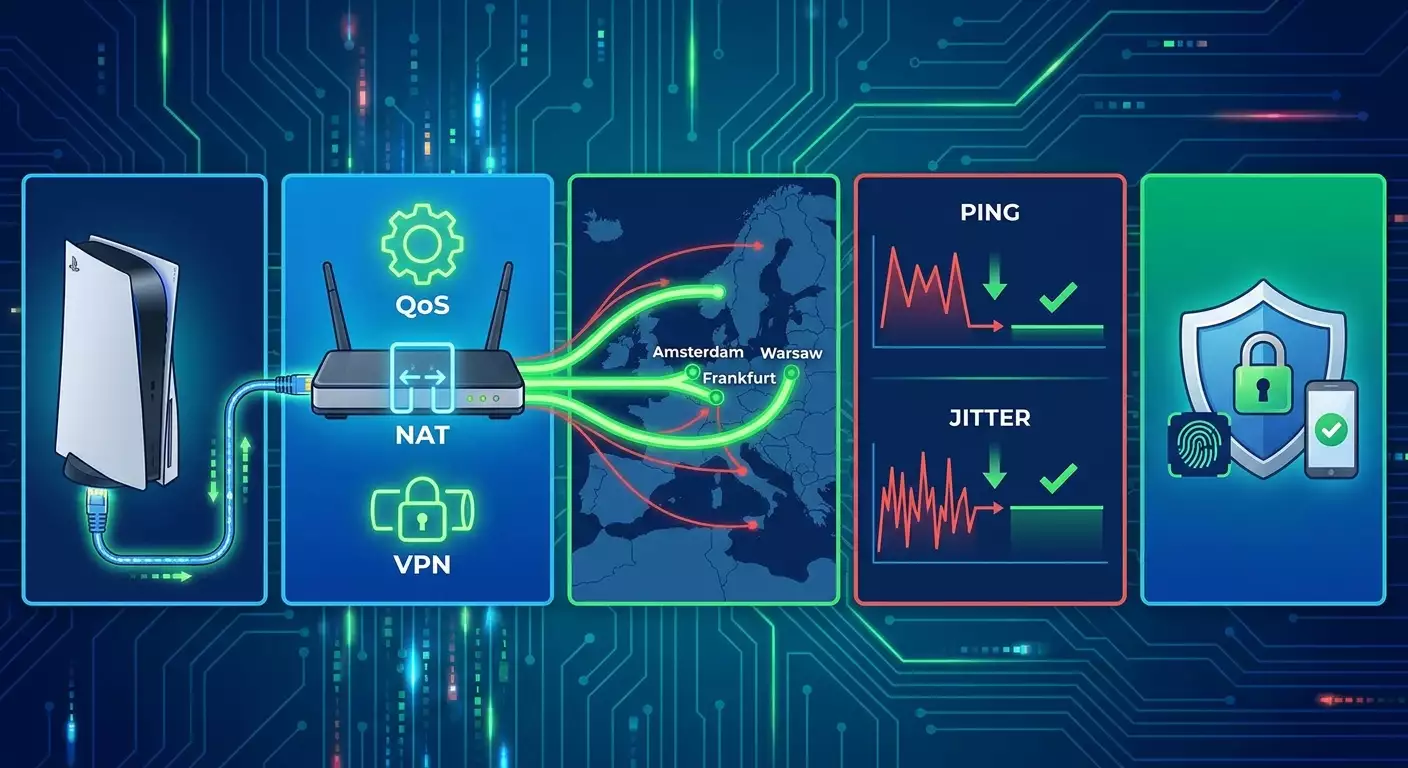
Content of the article
- Introduction
- Preliminary preparation
- Basic concepts
- Step 1: assess risks and legal aspects in 2026
- Step 2: prepare a safe network environment for gaming and psn
- Step 3: optimize your home network: nat, port forwarding, qos and mtu
- Step 4: test ping and route to europe and turkey
- Step 5: manage psn accounts — security, 2fa, backups
- Step 6: how to legally pay for subscriptions in 2026 — what’s allowed and what’s not
- Step 7: enable vpn on router or pc sharing — without breaking rules
- Step 8: fine-tune wi-fi and cables to eliminate lag
- Step 9: troubleshooting — from symptom to cause
- Verify your results
- Common mistakes and how to fix them
- Additional options
- Faq
- Conclusion
Introduction
This practical 2026 guide will help you understand what really works with PlayStation Plus and VPNs from Russia, the risks of changing your PSN account region to Turkey, how to safely configure your network for gaming, reduce ping, and achieve a stable connection without breaking the rules. We’ll honestly explain what’s allowed and what’s not, show clear measurement methods, provide step-by-step instructions for setting up your home network, VPN clients, and routers, along with checklists to verify your results. By the end, you’ll have a solid strategy: understanding the risks, mastering ping optimization, learning about VPN, NAT, QoS protocols, and confidently playing with minimal lag.
This guide is perfect for beginners and those who’ve tried VPNs but want to dive deeper. We use simple language and include advanced sections where they boost your results.
Before we start, it’s important to know: we do not provide instructions to bypass geo-restrictions and do not describe actions that violate laws or platform rules. You’ll get only safe, tested steps. We’ll explain risks, legal nuances, and suggest alternative strategies and settings that improve your gaming experience without causing bans.
Time needed: to understand risks — 15–30 minutes; basic network setup — 30–60 minutes; advanced router optimization — 60–120 minutes; diagnostics and checks — 15–30 minutes.
Preliminary Preparation
Prepare the following for smooth setup.
Required Tools and Access
- PlayStation 5 or PS4 console with internet access.
- PC or laptop on Windows, macOS, or Linux for network diagnostics and VPN client setup if needed.
- Home router with current firmware; preferably supporting QoS, UPnP, and ideally routing policies and/or built-in VPN client.
- Access to your router’s control panel (admin login and password).
- Active PSN account (you’ll operate strictly within rules; we do not describe actions violating PSN policy).
System Requirements
- Stable internet connection: 30 Mbps or higher for gaming and updates.
- Provider with low latency to Europe or Turkey: ping to Frankfurt around 40–80 ms is generally acceptable.
- Preferably, wired Ethernet connection from console to router for better stability.
What to Download/Install/Set Up
- Diagnostic utilities on your PC: ping, traceroute (Windows: tracert), MTR (WinMTR), iperf3 — for testing delays and packet loss.
- If needed: VPN client apps on PC or instructions for router setup using WireGuard or OpenVPN protocols.
- Passwords for accounts and devices — store them in a password manager.
Backups
- Backup essential game saves via console menu to external drive or PS Plus cloud, if available in your country and for your account region.
⚠️ Warning: Don’t change critical network settings unless you’re sure. Record original router parameters (IP address, login, password, operation mode) before any changes.
Tip: Restart your router and console before starting settings. Sometimes this fixes ping and NAT problems immediately.
Basic Concepts
Key Terms in Simple Language
- VPN — a secure encrypted tunnel to a remote server. It can change traffic routes and sometimes affects ping.
- Ping (latency) — time for a packet to reach the server and return. The lower, the better. Measured in milliseconds (ms).
- Packet loss — percentage of lost messages en route. Should be 0–1% for stable gaming.
- Jitter — variation in latency. Low jitter (up to 5–10 ms) is good.
- NAT — address translation. On PSN you’ll see NAT Types 1/2/3. Type 2 is the best balance between security and accessibility.
- QoS — traffic prioritization on your router. Helps prevent lag when the network is busy with downloads.
- WireGuard / OpenVPN / IKEv2 — common VPN protocols. WireGuard often offers the best speed and lowest latency.
Main Principles
- Short route to game servers = lower ping.
- Wired connection is more stable than Wi‑Fi.
- Personal VPN IP is more reliable than shared, less likely to be mass-blocked.
- Avoid double NAT and congested channels — these cause lag.
Tip: If you’re new to VPNs, start with a PC client and measurement methods, then move to router and routing policies.
Step 1: Assess Risks and Legal Aspects in 2026
Goal of This Step
Understand why direct guides for switching your PSN region to Turkey or buying subscriptions through VPN aren’t provided, and what the consequences might be. Formulate a safe action plan.
Detailed Step-by-Step Instructions
- Read PSN’s terms of service carefully. Pay attention to clauses about data accuracy, place of residence, payment methods, and prohibition on bypassing restrictions.
- Note this clearly: any pretending to be in a different jurisdiction, fake data, mismatched account and payment regions, or attempts to circumvent geo-blocks can result in sanctions from the platform, including account bans and loss of access to purchases.
- If you’re physically outside Turkey, do not create or use instructions aimed at making your location appear Turkish. This breaks the rules. We do not cover such actions.
- Identify your legal alternatives: use your true region, wait for official payment methods, play free-to-play games, optimize ping and stability for the best current experience.
- Focus on what you can control: network setup, reducing latency, correct NAT and QoS configuration, protecting your account, and effective diagnostics.
⚠️ Warning: Trying to bypass regional restrictions with falsified data can violate laws and service terms. Risks include account bans, lost payments without refund, and loss of your game library.
Tip: If you genuinely reside in another country, use truthful data and local payment methods following official registration procedures. This is safe and reliable.
✅ Check: You understand not to seek or use circumvention schemes. Your goal is legal configurations and improving connection quality.
Common Issues and Solutions
- Issue: Found a “quick way to switch to Turkey” online. Cause: Shady schemes. Solution: Avoid them. Focus on network improvements and legal options.
- Issue: Price pressure. Cause: Exchange rates and market differences. Solution: Weigh your time and ban risk against savings. Usually risks aren’t worth it.
Step 2: Prepare a Safe Network Environment for Gaming and PSN
Goal of This Step
Set up basic VPN and network settings so games run smoothly, ping is predictable, and your account stays protected. We’ll optimize your connection without breaking rules.
Detailed Step-by-Step Instructions
- Connect your console to the router via Ethernet cable to reduce jitter and packet loss compared to Wi-Fi.
- Restart your modem/router and console. Ensure internet is stable, websites load quickly, and ping commands on PC to major nodes (e.g., public DNS servers) show low latency.
- Check if UPnP is enabled on your router. This helps PSN services open ports dynamically. If you have strict security needs, manual port forwarding is an option (covered later).
- Open your router’s settings and enable QoS or Smart Queue Management (SQM). Activate fq_codel or cake if available. Set bandwidth limits to 90–95% of your real speed to eliminate bufferbloat.
- Install diagnostic utilities on your PC: ping, tracert (or MTR/WinMTR), iperf3. Check your baseline metrics: average ping and packet loss on your usual connection without VPN.
- If you use VPN for privacy or routing some game traffic, prefer WireGuard protocol for minimal latency and overhead; OpenVPN as an alternative; IKEv2 for mobile or unstable networks. Consoles don’t have native VPN clients, so use VPN on your router or share VPN connection from PC.
- Set up VPN client on your PC and confirm stable connection. Measure ping to key cities (Frankfurt, Warsaw, Amsterdam, London) and compare results with and without VPN.
- Decide if you actually need VPN for gaming: sometimes direct connection without VPN yields lower latency. If VPN adds ping, don’t use it for matchmaking. You may keep VPN for downloads or media, routing games around it.
Tip: Warsaw and Frankfurt often provide the lowest ping from Russia. Routes to them are generally shorter than London or New York.
Tip: Avoid router “boosters” or “turbo modes” that are unclear. Focus on SQM and correct MTU setup.
Tip: If your ISP uses CGNAT, request a public IPv4 address. This improves NAT handling and reduces chances of NAT Type 3.
✅ Check: QoS enabled, low jitter in local tests, stable ping to Frankfurt/Warsaw, VPN connects without drops (if used).
Expert Recommendation on Personal VPN
If your goal is ping stability and predictable routing, consider a personal VPN with a dedicated IP rather than shared. This lowers the risk of mass blocks and provides a stable route. vpn.how offers personal VPN servers without logs, ready within 5 minutes after payment, supporting WireGuard, OpenVPN, IKEv2, L2TP, SSTP, with servers in Moscow, St. Petersburg, Amsterdam, Frankfurt, London, New York, San Jose, Chicago, Singapore, Sydney, Madrid, Helsinki, Stockholm, Warsaw, Copenhagen, Stavanger. They accept Russian cards (including Tinkoff, Ozon), SBP, USDT/BTC, with rates from 490 ₽ per day and 2490 ₽ per month, discounted for long terms. For gaming, a personal VPN usually yields more stable ping and fewer anti-cheat blocks compared to public VPNs. Choose locations near your target nodes (often Warsaw or Frankfurt) and use WireGuard for minimal delay.
Common Issues and Solutions
- Issue: Ping higher over VPN. Cause: Far server or heavy protocol. Solution: Switch to WireGuard and a closer server (Warsaw/Frankfurt/Amsterdam), then retest.
- Issue: NAT Type 3. Cause: CGNAT or closed ports. Solution: Enable UPnP or set up port forwarding; request public IP from your ISP.
Step 3: Optimize Your Home Network: NAT, Port Forwarding, QoS and MTU
Goal of This Step
Achieve stable NAT Type 2, eliminate bufferbloat, set proper MTU, and prioritize gaming traffic without compromising security.
Detailed Step-by-Step Instructions
- Check current NAT type in the console network settings (Internet connection test). Note your result: Type 1/2/3.
- If you get NAT Type 3: log into your router and enable UPnP. Restart your console and check NAT again.
- If you prefer no UPnP: assign a static IP to your console via DHCP reservation, then manually forward required PSN ports (vendor lists current port ranges; typically TCP/UDP 80, 443, and game-specific ports). Save and reboot.
- In QoS/SQM, set your upload and download bandwidth limits to 90–95% of your measured real speeds (test via speedtests at peak times). Enable fq_codel or cake if available.
- Set device prioritization by assigning highest priority to your console’s MAC address. Disable torrents or other background downloads on your PC during gaming sessions.
- Determine the correct MTU. On PC, ping with 'do not fragment' option reducing packet size until no fragmentation. Set MTU on console/router to a safe value (often 1472–1500, depending on ISP and VPN).
Tip: If running OpenWrt or similar firmware, consider SQM Cake — one of the best ways to fix bufferbloat.
Tip: Avoid double NAT: if your ISP’s modem is in router mode, switch it to bridge mode or request transparent bridge mode from ISP.
✅ Check: NAT Type 2, stable ping without spikes under load, no noticeable lag with simultaneous streaming and gaming.
Common Issues and Solutions
- Issue: No access to ISP modem settings. Cause: Locked admin panel. Solution: Contact your ISP, request bridge mode or public IPv4.
- Issue: UPnP perceived as unsafe. Cause: Auto-open ports. Solution: Use static IP and manual port forwarding; disable UPnP.
Step 4: Test Ping and Route to Europe and Turkey
Goal of This Step
Measure latency and channel quality to key cities to understand where your traffic performs best and which servers or VPNs to choose.
Detailed Step-by-Step Instructions
- On PC, send 100 ping packets to nearby major nodes (e.g., public DNS servers of known providers). Record average ping, min/max, and packet loss.
- Run traceroute/tracert to Frankfurt, Warsaw, Amsterdam, and London. Identify where delays and losses occur (usually bottlenecks).
- Connect VPN on PC to Frankfurt server. Repeat ping and traceroute. Compare route changes.
- Repeat for Warsaw and Amsterdam. Record results in table: city — avg ping — loss — jitter — stability.
- Run speed tests during peak hours (evenings). Compare channel stability: sometimes ping without VPN is good by day but worse at night, or vice versa.
- Conclude which locations provide the best ping and stability balance for you. In 2026 Warsaw and Frankfurt often lead, but it heavily depends on your ISP.
Tip: For the Turkish PSN segment, some infrastructure is hosted in European data centers. From Russia, routes to Frankfurt/Warsaw are often shorter and more stable than to southern nodes.
✅ Check: You have a table with delay and loss data for key locations and can identify the best route.
Common Issues and Solutions
- Issue: Results vary greatly. Cause: Night congestion, ISP inter-network policies. Solution: Test at different times, use SQM, try another VPN server.
- Issue: Losses at first hop. Cause: Wi-Fi interference or bad cable. Solution: Switch to cable, replace cable, change Wi-Fi channel.
Step 5: Manage PSN Accounts — Security, 2FA, Backups
Goal of This Step
Strengthen account protection without rule-breaking, and set up backups to avoid losing progress and purchases.
Detailed Step-by-Step Instructions
- Enable two-factor authentication (2FA) in your PSN settings. Choose a secure method (authenticator app or SMS).
- Ensure your contact email is accessible, your password is unique and strong. Change if needed and save it in a password manager.
- Check activated devices list. Remove any extra or unknown devices.
- Backup important saves to external drive via console menu or to cloud if available for your region.
- Confirm your account’s regional settings match your actual residence and that you don’t use payment methods violating platform rules.
- Create a simple security checklist: password change date, 2FA enabled, devices verified. Set reminders to review every 2–3 months.
⚠️ Warning: We deliberately don’t cover or recommend PSN region changes to Turkey while actually located elsewhere. This can violate rules and cause sanctions.
Tip: If you’ve legally moved to another country long-term, follow official procedures and use local payment methods that comply with your new country.
✅ Check: 2FA enabled, strong password, no extra devices, backups done, settings compliant with platform rules.
Common Issues and Solutions
- Issue: SMS not received. Cause: Operator blocking. Solution: Use an authenticator app instead.
- Issue: Difficult to restore email access. Cause: Old mailbox. Solution: Update backup email, configure backup codes.
Step 6: How to Legally Pay for Subscriptions in 2026 — What’s Allowed and What’s Not
Goal of This Step
Understand principles of safe payments without shady schemes to avoid bans or lost funds.
Detailed Step-by-Step Instructions
- Check officially supported payment methods for your region and account. Use only those compatible with your account’s region and platform terms.
- Avoid little-known intermediaries or donation bots offering “fast and cheap subscription activation in another country.” They involve risk of chargebacks, bans, and fraud.
- Don’t buy codes from unverified sellers. Even if a code activates, it may later be revoked with a block.
- If official payment isn’t available, consider alternatives: play F2P games, buy physical discs, or wait for official changes. This is safer than risking your whole account.
- Track your spending on games and subscriptions. Record dates, amounts, and payment sources. This helps with disputes and budgeting.
Tip: If an official payment method appears in the future, make a small initial transaction to test payment processing and look for unexpected fees.
✅ Check: You have no plans to use suspicious payment methods. You use only approved methods valid for your region and platform rules.
Common Issues and Solutions
- Issue: Seller promises “guarantees.” Cause: Marketing trick. Solution: Guarantees won’t protect from platform sanctions. Don’t risk your account.
- Issue: Currency differences and fees. Cause: Conversion costs. Solution: Consider exchange rates and bank fees; choose transparent payment methods.
Step 7: Enable VPN on Router or PC Sharing — Without Breaking Rules
Goal of This Step
Set up VPN only for tasks where it’s safe and useful: stable update downloads, jitter reduction, privacy, and not for bypassing restrictions.
Detailed Step-by-Step Instructions
Option A: VPN on Router (Routing Policies)
- Check if your router supports WireGuard/OpenVPN. If yes, add the server profile, input keys/certificates, apply the config.
- Create a rule: send console gaming traffic directly (no VPN), while updates and media go through VPN. This is called policy-based routing (PBR). If your router lacks PBR, use a separate SSID or port for the VPN segment and connect only the needed devices there.
- Enable the DNS resolver on your router and, if needed, lock down DNS servers to avoid leaks. Make sure this doesn’t break PSN services.
Option B: VPN on PC with Sharing to Console
- Connect your PC to the internet and to your console via Ethernet (or create a Wi-Fi hotspot on PC).
- Start your VPN client on PC, confirm connection.
- Enable internet sharing on the VPN connection, specifying your console’s adapter as the target.
- Check that your console gets an IP from PC and accesses the internet. Run connection test on console.
Tip: If unsure whether VPN is needed for matchmaking, disable it for games but keep it for downloading updates. This minimizes latency.
✅ Check: Games run smoothly, ping is predictable, updates download without speed drops, no PSN errors.
Common Issues and Solutions
- Issue: VPN blocks PSN access. Cause: DNS issues or blocked IP. Solution: Route PSN traffic outside VPN (PBR), change server node, or use dedicated IP.
- Issue: Download speeds drop. Cause: Weak router CPU or heavy encryption. Solution: Use WireGuard, update firmware, upgrade to a more powerful router.
Step 8: Fine-Tune Wi-Fi and Cables to Eliminate Lag
Goal of This Step
Improve wireless stability or ensure your cable operates at peak performance.
Detailed Step-by-Step Instructions
- Where possible, use Cat5e/6 Ethernet cable up to 10–20 meters without cheap adapter joints. Avoid damaged or kinked cables.
- For Wi-Fi, use 5 GHz or 6 GHz bands, select free channels (scan the environment), and set channel width between 40–80 MHz considering interference.
- Position router and console away from interference sources (microwave ovens, Bluetooth speakers, thick walls, mirrors). Elevate the router above floor level.
- Disable Wi-Fi adapter power-saving modes if they cause signal drops.
- Run 200 ping tests from PC to your local router (gateway). Jitter should be minimal (1–3 ms). If higher, try changing channels or moving equipment.
Tip: Two access points (mesh) can be better than one busy point, but wired connection remains the gold standard for gaming.
✅ Check: Local tests show jitter 1–5 ms, no signal drops, and the console maintains connection.
Common Issues and Solutions
- Issue: High jitter during prime time. Cause: Congested wireless spectrum. Solution: Switch channels or frequency bands, reduce channel width, switch to cable.
- Issue: Packet loss. Cause: Bad cable or connector. Solution: Replace cable, check for crosstalk, use shielded patch cords.
Step 9: Troubleshooting — From Symptom to Cause
Goal of This Step
Learn to quickly identify the bottleneck: provider, router, Wi-Fi, VPN, or game server.
Detailed Step-by-Step Instructions
- Identify symptoms: high ping, jitter spikes, micro-lags, disconnects, NAT Type 3, slow downloads.
- Check your local network first: ping your router. If okay, proceed.
- Ping your ISP’s nearest nodes. If high latency, the problem is with provider—contact support.
- Compare results with and without VPN. If VPN improves latency, your route to Europe is poor. Consider using VPN consistently for downloads and direct connection for gaming.
- If only one game lags, check its server region. It might be server-side overload.
- Check home network load: torrents, cloud uploads, 4K streaming. Limit or prioritize traffic in QoS.
Tip: Change only one setting at a time and measure results to see what really helps.
✅ Check: You can identify a probable cause of lag and demonstrate improvement after specific changes.
Common Issues and Solutions
- Issue: Traceroute results hard to interpret. Cause: Some hops block ICMP. Solution: Look for overall trend and use MTR to assess loss/jitter.
- Issue: Drops only in evenings. Cause: Peak network load. Solution: Enhance SQM, change Wi-Fi channel, ask ISP about alternative plans or channels.
Verify Your Results
Checklist
- NAT Type 2 is stable.
- Ping to your selected hub (Warsaw/Frankfurt) is normal without spikes.
- Minimal jitter, packet loss 0–1%.
- QoS/SQM enabled and configured.
- 2FA enabled, save backups completed.
- No plans or actions to bypass geo-restrictions; payments comply with rules.
How to Test
- Run 3 sets of 200 ping packets to your chosen European node in morning, afternoon, and evening; compare stability.
- Play a quick online game and monitor latency indicators for 15–30 minutes.
- At the same time, run light streaming or downloads and verify SQM keeps latency under control.
Success Indicators
- Your average ping to the chosen node fits your target values.
- Jitter doesn’t interfere with precise aiming or timing in action scenes.
- No PSN errors during gameplay, matchmaking works without disconnects.
Common Mistakes and How to Fix Them
- Mistake: Trying to change PSN region to Turkey while outside Turkey. Cause: Desire to save money. Solution: Avoid shady schemes, stay within rules.
- Mistake: Using VPN on all devices and apps. Cause: Convenience. Solution: Use policy-based routing: games go direct, downloads/media via VPN.
- Mistake: Ignoring QoS/SQM. Cause: Not understanding its importance. Solution: Set up SQM with proper bandwidth limits.
- Mistake: Using Wi-Fi instead of cable for competitive gaming. Cause: Laziness to wire cable. Solution: Switch to Ethernet at least for important matches.
- Mistake: Trusting unverified subscription code sellers. Cause: Low price temptation. Solution: Buy only through legal local methods.
- Mistake: Not enabling 2FA. Cause: “It’ll be fine.” Solution: Enable 2FA immediately and save backup codes.
- Mistake: Ignoring CGNAT. Cause: Lack of awareness. Solution: Request public IPv4, enable UPnP or port forwarding.
Additional Options
Advanced Settings
- Split tunneling on router: Route only specific domains or IPs through VPN to minimize latency for games.
- DNS debugging: Use local cache resolver on router, set short TTL, avoid DNS leaks when VPN is active.
- IPv6 support: Enable IPv6 if your ISP supports it. May reduce latency to some services. Check PSN compatibility.
Optimization
- Node rotation: Keep 2–3 VPN configs in nearby locations (Warsaw/Frankfurt/Amsterdam). Switch nodes during peak times.
- Hardware acceleration: If router is weak, upgrade to a modern model with hardware VPN encryption support.
- Monitoring: Set up scripts or router features to track ping/loss graphs.
Other Tips
- Separate VLAN for console: Isolate your gaming device from noisy smart gadgets.
- Regular audits: Quarterly reviews of QoS, passwords, backups, and firmware updates.
FAQ
- Can I use VPN to get PS Plus in another country? We don’t provide such instructions. It may violate rules and cause penalties. Use only legal methods suitable for your region.
- Can VPN reduce ping in games? Sometimes, if your route to servers is poor. Often, direct connections are faster. Test and choose the best option.
- Which VPN protocol is best for gaming? WireGuard usually offers lowest latency and best speed. OpenVPN is an alternative; IKEv2 suits mobile networks.
- Which city to pick for VPN server from Russia for lowest ping? Warsaw and Frankfurt often provide the best balance, but test yourself—ISP varies.
- Do I need a dedicated IP? Yes, for stable, predictable routes and fewer blocks versus shared IPs.
- Why do I have NAT Type 3? Possibly CGNAT or closed ports. Fix with UPnP, manual port forwarding, or public IPv4 from ISP.
- Should I enable VPN directly on the console? PS5/PS4 don’t have native VPN clients. Use VPN on router or shared from PC.
- How do I know QoS is set correctly? When downloads start, game latency stays stable. If latency rises, reduce bandwidth limits to 90% of actual speeds.
- What if my game lags only in the evening? That’s peak network load. Increase SQM, test different VPN servers, or ask ISP about congestion.
- Is buying subscription codes “from hands” safe? It’s risky. Codes may be revoked and accounts blocked. Use only official payment methods in compliance with rules for your region.
Conclusion
You’ve explored the risks and details of using PlayStation Plus via VPN from Russia in 2026, understood why direct guides to switch to a Turkish region are unsafe and forbidden, and received a complete practical set of steps to genuinely improve your gaming experience. You configured basic and advanced network settings, achieved NAT Type 2, enabled QoS/SQM, selected suitable VPN protocols and server locations, set up routing policies without breaking rules, and strengthened your account security with 2FA and backups. Moving forward — keep settings tidy: review them quarterly, switch to the best routes at peak times, monitor firmware and app updates. Grow towards more flexible routing (policy-based routing), study MTR metrics, automate ping monitoring. And remember the core principle: honest settings and thoughtful network optimization bring stability and predictability, while shortcuts risk your account and library. Good matches and minimal ping to you!