Fortnite in Russia 2026: How to Play via VPN with Low Ping — Step-by-Step Guide
A beginner-friendly step-by-step guide on setting up a VPN for Fortnite in Russia in 2026, bypassing regional restrictions while maintaining stable, low ping. Within 60–120 minutes, you'll configure your system, choose the best server, and verify your in-game performance.
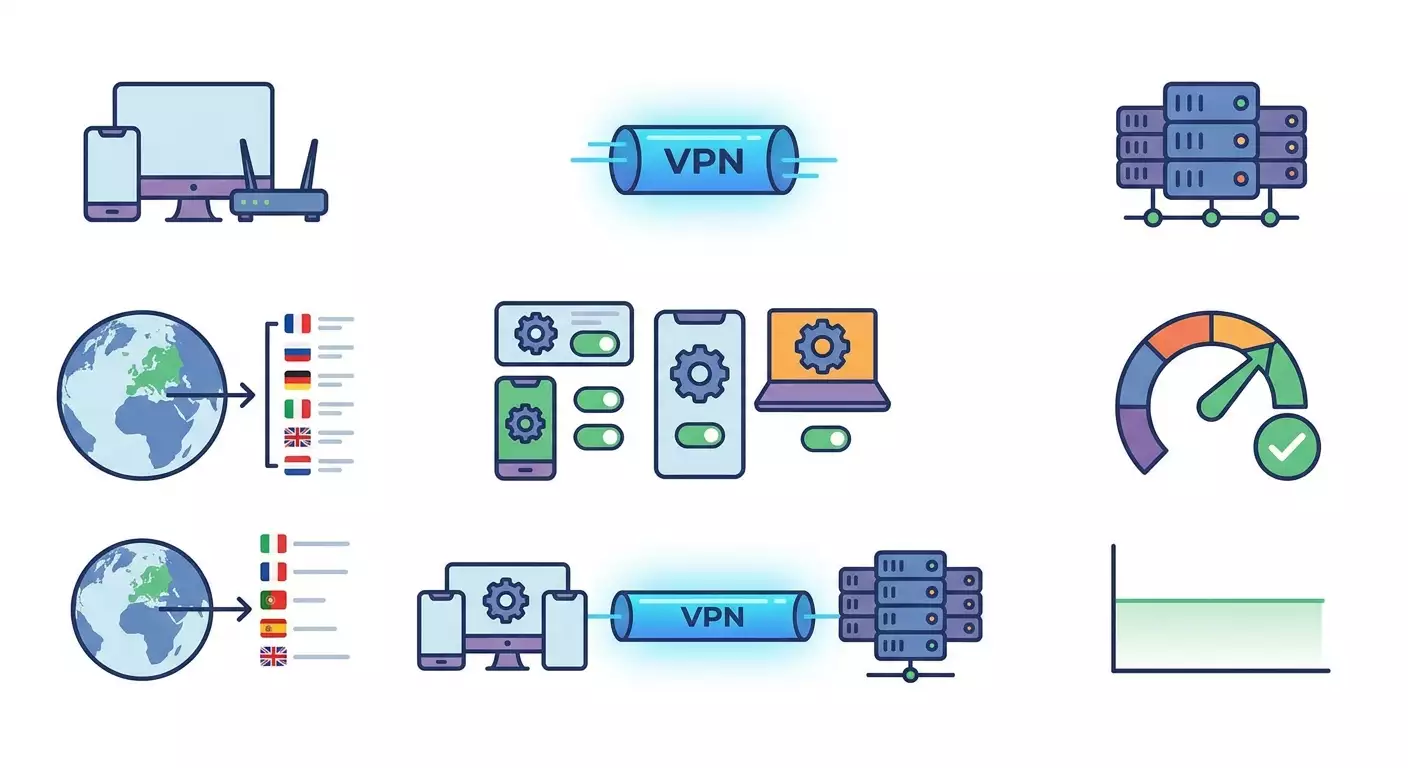
Content of the article
- Introduction
- Preparation
- Basic concepts
- Step 1: measure current ping and establish a baseline
- Step 2: choose bypass strategy and server region for low ping
- Step 3: set up vpn on windows 10/11 (wireguard and alternatives)
- Step 4: set up vpn on macos (wireguard, ikev2, openvpn)
- Step 5: setup vpn on android and ios (per-app vpn and mobile network stability)
- Step 6: set up vpn on router for consoles (openwrt, mikrotik, asuswrt-merlin) and alternatives
- Step 7: fine-tuning performance and stability (mtu, dns, split tunneling)
- Step 8: risk management, security, and compliance
- Result verification
- Common issues and solutions
- Additional features
- Faq
- Conclusion
Fortnite in Russia 2026: VPN setup, bypassing regional blocks, and achieving low ping — a detailed beginner’s guide with hands-on steps and checks at every stage.
Introduction
In this step-by-step guide, you'll learn how to launch Fortnite from Russia in 2026 by carefully setting up a VPN that both bypasses regional restrictions and provides consistently low ping. We’ll cover choosing the right protocol, server location, and configuring Windows, macOS, Android, iOS, and even your home router for consoles. By the end, you'll join matches with normal ping and no packet loss, plus you'll know how to diagnose and fix network issues if they arise.
This guide is perfect for beginners but also includes advanced sections covering manual MTU tuning, Policy Based Routing on OpenWrt, DNS selection, per-app VPN, and anti-cheat optimizations.
Important to know upfront: using a VPN should comply with your country's laws and the rules of games/platforms. We don't encourage breaking laws or license agreements. Always check Fortnite and platform rules before setting up.
Estimated time: basic PC setup — 30–60 minutes, smartphone — 20–40 minutes, router — 45–120 minutes. Allow an extra 30 minutes for testing and fine-tuning.
Preparation
Required tools and access:
- Epic Games account or platform account access (PSN, Xbox, Nintendo).
- Access to Fortnite installer on PC or the console/device where you play.
- Chosen VPN provider supporting gaming protocols and servers in needed regions.
- Basic admin rights on your device (for VPN client installation and network settings changes).
System requirements (minimum for stable VPN):
- Stable internet connection 20 Mbps or higher, with latency to your ISP’s nearest node under 20–30 ms.
- PC: Windows 10/11 or macOS 12+, at least 4 GB RAM.
- Smartphones: Android 9+ or iOS 15+.
- Router (optional): model supporting WireGuard/OpenVPN (e.g., OpenWrt, MikroTik, AsusWRT-Merlin).
What to download/install:
- WireGuard client (recommended for low ping) or OpenVPN/IKEv2 depending on your device.
- Diagnostic tools: Speedtest (or equivalent), PingPlotter (or similar), system utilities like ping/tracert.
Backups and settings saving:
- On the router: save current config before changes.
- On PC/smartphone: export existing VPN profiles (if any) or save network settings screens.
Pre-start check: confirm access to your account, Fortnite installed (or can install/update), stable internet, and your ISP does not block UDP traffic.
Check: you're ready to proceed if you can open the Epic Games Launcher or your platform’s client and have speed and ping test tools installed.
Basic Concepts
Ping: time in milliseconds for a packet to travel to the server and back. The lower, the more responsive the game.
Packet Loss: percentage of packets not reaching the destination. Even 1–2% causes noticeable stutters and glitches in games.
Jitter: variation in delay. Low jitter means stable packet delivery times. For Fortnite, minimal jitter is the goal.
VPN: an encrypted tunnel to a remote server. It changes your route and public IP. For gaming, low latency and minimal encryption overhead matter.
VPN Protocols: WireGuard (typically fastest and most stable), OpenVPN-UDP (slightly slower but widely compatible), IKEv2 (stable on mobile), L2TP and SSTP (slower and higher latency).
Split tunneling: some traffic goes via VPN, some directly. This lets you send only Fortnite and related domains through VPN.
MTU: maximum packet size without fragmentation. Correct MTU reduces delays and packet loss with VPN.
Anti-cheat: protection systems may distrust shared VPN IPs. Dedicated IPs and clean subnets reduce flag risks.
Key understanding: final ping is the sum of delays from you to VPN plus VPN to Fortnite’s data center. So choosing location and protocol is crucial.
Check: you understand ping, loss, and why WireGuard is usually preferred. Let’s move to practical steps.
Step 1: Measure Current Ping and Establish a Baseline
Goal: identify your starting point: ping, stability, and where bottlenecks lie — with your ISP or beyond.
- Connect your device via Ethernet to the router to avoid Wi-Fi influence. If no cable, sit close and use 5 GHz Wi-Fi.
- Open a speed test app (Speedtest or equivalent). Select the closest server for your ISP and run the test. Record ping, jitter, and speeds.
- Open system terminal: Windows - type "cmd", launch Command Prompt; macOS - Terminal; Android - Termux (optional) or network tools; iOS - Network Tools app (optional).
- Ping a nearby server (e.g., public DNS): Windows: ping 1.1.1.1 -n 50; macOS/Linux: ping -c 50 1.1.1.1. Save average ping and loss.
- Trace route to a European node: Windows - tracert; macOS/Linux - traceroute to 1.1.1.1 or 8.8.8.8. Observe where delays increase.
- Launch Fortnite, enable Network Debug Stats, note lobby and match ping plus packet loss.
Note: if your ISP blocks UDP or has strict CGNAT, watch for ping spikes and loss — important for protocol and port choices ahead.
Tip: do at least three tests at different times: morning, evening peak, late night, to see real network load.
Expected result: you have a baseline ping/speed table and understand where delays begin.
Common issues and fixes:
- High ping variability over Wi-Fi — switch to cable.
- Packet loss before 1.1.1.1 — check cables, reboot router, pause all downloads/streams in your home.
- Game ping higher than system ping — normal as game servers are further and engine overhead applies.
Check: baseline recorded. Save numbers for comparison after VPN setup.
Step 2: Choose Bypass Strategy and Server Region for Low Ping
Goal: pick VPN location and protocol so the combined latency "you to VPN" + "VPN to Fortnite" is as low and stable as possible.
- Identify your Russian region: Northwest (St. Petersburg), Central (Moscow), South, Ural, Siberia, Far East — this affects the optimal European node.
- Choose the target game cluster. In 2026, European clusters are usually best for Fortnite: Central Europe (Frankfurt), Northern Europe (Stockholm/Helsinki), Western Europe (Amsterdam/London), Eastern Europe (Warsaw). Aim for shortest geographic and network distance.
- Select VPN server location: Moscow/SPb players often find Frankfurt, Warsaw, Helsinki, or Stockholm fastest; South/Central Russia: Frankfurt/Amsterdam/Warsaw; Ural/Siberia: Helsinki/Stockholm or sometimes Singapore (check carefully); Far East: test Singapore, sometimes Tokyo/Seoul (if your provider has them), but mind Fortnite's matchmaking regional policies.
- Pick protocol: start with WireGuard (UDP, low overhead). If UDP shaping occurs, try OpenVPN-UDP on alternate ports (443/1194) or IKEv2. L2TP/SSTP only as last resort.
- Decide VPN type: personal dedicated IP vs shared public. For anti-cheat and steady ping, dedicated IP is better to avoid shared congestion and blacklists.
- Plan routing: do you want all traffic through VPN or just Fortnite (split tunneling) to reduce load and latency?
Tip: WireGuard on UDP port 51820 generally yields the best ping. If your ISP blocks non-standard ports, request alternatives (e.g. UDP/443) or set OpenVPN-UDP on port 443.
Tip: base your VPN location choice on fastest network route, not just geographic proximity. Do a quick ping test to the VPN server before committing.
Warning: VPN use may violate platform/service rules. Verify legality and compliance with Fortnite/platform terms. This guide focuses on technical setup and connection quality.
Expected result: a clear plan: VPN location, protocol, tunnel type, and routing strategy.
Common issues and fixes:
- Can't decide between two cities — test each 10–15 minutes during peak hours.
- Your network blocks UDP — use OpenVPN TCP/443 for temporary tests, but seek working UDP for gaming.
- Frequent anti-cheat bans on shared VPN IPs — switch to dedicated IP.
Tip: if playing with friends in Europe, pick a VPN location optimal for all, often Frankfurt or Amsterdam.
From experience, vpn.how is a solid option for gaming with dedicated VPN servers, separate IPs (no sharing), supporting WireGuard, OpenVPN, IKEv2, L2TP, SSTP — adaptable to ISP restrictions. Locations include Moscow, St. Petersburg, Amsterdam, Frankfurt, London, New York, San Jose, Chicago, Singapore, Sydney, Madrid, Helsinki, Stockholm, Warsaw, Copenhagen, Stavanger — perfect for routing from Russia to European Fortnite clusters. Payments accept Russian cards (Tinkoff, Ozon), SBP, cryptocurrencies (USDT/BTC). Server spins up ~5 minutes post-payment, no logs. Prices start at 490 RUB/day and 2490 RUB/month, with discounts for longer plans. Dedicated VPN typically offers more stable ping and fewer anti-cheat flags compared to shared public addresses.
Check: you've selected VPN country/city, protocol, and decided on a dedicated IP. Ready for setup.
Step 3: Set Up VPN on Windows 10/11 (WireGuard and Alternatives)
Goal: establish a VPN connection on Windows with minimal latency and correct Fortnite traffic routing.
Option A: WireGuard (recommended)
- Download and install the official WireGuard client for Windows. After installation, you'll see the WireGuard shortcut on your desktop.
- Obtain config file (.conf) from your VPN provider, containing keys, addresses, and port info.
- Open WireGuard. Click "Add Tunnel" — choose "Add empty tunnel" to generate keys or "Import tunnel(s) from file" to load your config.
- If generating keys, copy PublicKey to your VPN provider’s control panel. Fill Endpoint (IP:port) and AllowedIPs (typically 0.0.0.0/0, ::/0 for full traffic or specific routes for split tunneling).
- Click "Save", then "Activate" to start the tunnel. A key icon will appear in the system tray.
- Check routes: run "route print" in Command Prompt. Confirm default route points to WireGuard interface (if routing all traffic).
- Check MTU: run "netsh interface ipv4 show subinterfaces" to see current MTU. WireGuard often works best with 1420–1432. Set MTU with "netsh interface ipv4 set subinterface \"WireGuard interface name\" mtu=1420 store=persistent". Test values from 1380 to 1450 to minimize loss.
- Configure DNS in .conf (e.g. 1.1.1.1 or your VPN provider’s DNS) to avoid leaks and speed up game domain resolution.
- Run Speedtest with VPN active. Compare ping/jitter with baseline. Then launch Fortnite and check Network Debug Stats.
Option B: IKEv2 (Windows built-in client)
- Go to "Settings" — "Network & Internet" — "VPN" — "Add a VPN connection".
- Provider: "Windows (built-in)". Enter server address, connection name, VPN type — IKEv2. Fill in authentication details.
- Save and connect. Test ping and stability as before.
Option C: OpenVPN-UDP
- Install OpenVPN GUI for Windows.
- Import your .ovpn profile. Confirm UDP protocol and suitable port (e.g. 1194 or UDP/443).
- Connect and check latency.
Tip: if ping rises noticeably with VPN, try another server location or lower MTU by 20–40 points and retest.
Expected result: successful connection via WireGuard/IKEv2/OpenVPN, internet functions, and Fortnite ping matches expected values for chosen location.
Common issues and fixes:
- WireGuard won’t connect — verify Endpoint and keys, ensure antivirus/firewall isn’t blocking.
- Internet works but some sites inaccessible — configure DNS in WireGuard config, check AllowedIPs.
- Packet loss in game — lower MTU, check channel usage by other devices.
Check: you connect to VPN on Windows without errors and observe predictable ping and loss.
Step 4: Set Up VPN on macOS (WireGuard, IKEv2, OpenVPN)
Goal: establish a similarly stable, low-latency VPN tunnel on macOS for Fortnite.
Option A: WireGuard for macOS
- Install WireGuard via Mac App Store.
- Open WireGuard, choose "Import Tunnel from File" or "Create from scratch" if you have server’s public key.
- Fill in Endpoint, keys, AllowedIPs. Save and activate connection.
- Check MTU: use Terminal and ping tests with “-D -s” flags to find optimal value between 1380–1450.
- Verify DNS in config. Then test ping and launch Fortnite through the relevant launcher.
Option B: IKEv2 (Built-in client)
- Open "System Preferences" — "Network" — "Add Service" — "VPN (IKEv2)".
- Enter server address, remote ID, and auth (login/password or certificate).
- Connect and test latency.
Option C: OpenVPN (via Tunnelblick or other client)
- Install Tunnelblick.
- Import .ovpn profile.
- Connect and check ping/packet loss.
Tip: on macOS, set "always through VPN" only for game addresses (split tunneling, if your provider supports it) to avoid overloading the tunnel.
Expected result: stable VPN connection on macOS with low latency.
Common issues and fixes:
- System switches DNS to provider’s — configure DNS in profile or set resolvers manually.
- Internet drops with active VPN — check routes and AllowedIPs, disable conflicting network utilities.
Check: Fortnite launches, ping matches selected location, packet loss stays around 0–1%.
Step 5: Setup VPN on Android and iOS (Per-App VPN and Mobile Network Stability)
Goal: run a VPN tunnel on your phone/tablet routing only Fortnite traffic, keeping ping low.
Android (WireGuard recommended)
- Install WireGuard from Google Play.
- Tap "+" — "Import from file/archive" and select your VPN .conf.
- Activate the tunnel and allow adding VPN profile in system.
- In tunnel settings, enable "Always-on VPN" for stable connection during gaming.
- Optionally enable "Block connections without VPN" to prevent traffic leaks during connection drops.
- For split tunneling, use "App settings" (if your client supports it) to route only Fortnite and Epic launcher through VPN. If unsupported, route all traffic and set undesirable apps to "data saver" mode.
- Test ping in game, preferably over 5 GHz Wi-Fi. If on mobile network, switch to 4G/5G with strongest signal.
iOS (IKEv2/WireGuard)
- Install WireGuard from App Store or add IKEv2 profile via "Settings" — "VPN".
- Import config and activate profile.
- To minimize delay, disable background refresh and sync during gameplay. iOS lacks flexible per-app split tunneling, so use full VPN or alternative clients with policy support.
- Check ping and loss in game.
Tip: IKEv2 sometimes holds tunnels more stably during brief cell tower handoffs, but WireGuard is usually faster. Test both.
Expected result: you can turn on VPN on Android/iOS before Fortnite and observe consistent ping.
Common issues and fixes:
- Disconnects in mobile network — enable "Always-on" and "Block connections without VPN" (Android), use IKEv2 on iOS.
- Ping spikes from notifications — temporarily disable alerts and background refresh.
Check: mobile VPN stays stable through 1–2 matches without sudden ping spikes or losses.
Step 6: Set Up VPN on Router for Consoles (OpenWrt, MikroTik, AsusWRT-Merlin) and Alternatives
Goal: connect your console (PS5, Xbox, Nintendo Switch) through VPN without installing clients on the console, achieving stable NAT and low latency.
Option A: OpenWrt + WireGuard (recommended)
- Access OpenWrt web interface (usually 192.168.1.1). Save current config: System — Backup / Flash Firmware — Generate Archive.
- Install WireGuard packages: System — Software — update lists, install luci-app-wireguard, wireguard-tools, kmod-wireguard.
- Network — Interfaces — Add new interface — type "WireGuard VPN". Paste PrivateKey, listening port (if needed), add Peer: server PublicKey, Endpoint (IP:port), AllowedIPs.
- Set default route via WireGuard (if all traffic) or configure Policy Based Routing (PBR) to send only console IP traffic through VPN. For PBR: install luci-app-pbr, create rule: Source IP — your console IP (e.g. 192.168.1.50) — Use WAN interface — WireGuard.
- Configure DNS: force console IP to use DNS via WireGuard (DHCP static lease or DNS hijacking on router).
- Save, apply changes, reboot router.
- Assign static IP to console or DHCP reservation by MAC. Check NAT Type: at least "Moderate", preferably "Open". Enable UPnP on router if needed.
Option B: MikroTik + WireGuard
- Open WinBox/WebFig. Create WireGuard interface, import keys.
- Add peer, endpoint, and allowed-addresses.
- Create routes and mangle rules for PBR to direct console traffic into VPN.
- Set DNS for console IP, verify correct NAT and UPnP.
Option C: AsusWRT-Merlin + OpenVPN/WireGuard
- Import OpenVPN profile or configure WireGuard (if available) in VPN tab.
- Enable “Redirect internet traffic: Policy Rules” and add rules for console IP.
- Save and check NAT Type on console.
Alternative: Sharing VPN from PC
- Connect PC to VPN (WireGuard).
- Enable “Mobile Hotspot” and internet sharing for WireGuard interface in Windows.
- Connect console to this network and test ping/NAT.
Tip: if NAT Type is "Strict," turn on UPnP on router and reboot console. Avoid manual port forwarding with active VPN as it rarely helps and can reduce security.
Warning: always backup router configuration before changes to quickly revert if something goes wrong.
Expected result: console traffic runs through VPN, games launch smoothly, ping stable, NAT acceptable.
Common issues and fixes:
- Console can't access network — check DHCP and PBR routes.
- Strict NAT — enable UPnP, restart tunnel, verify no double NAT on multiple routers.
- High ping — try different VPN location, test wired connection.
Check: console network settings show NAT not "Strict", Fortnite latency meets targets, no packet loss.
Step 7: Fine-Tuning Performance and Stability (MTU, DNS, Split Tunneling)
Goal: eliminate micro-lags and delay spikes by precisely configuring network parameters.
- MTU: find optimal MTU for your tunnel. On Windows, test ping with "-f -l" flags (e.g. ping 1.1.1.1 -f -l 1472), lowering size until packets don’t fragment. Subtract VPN overhead (~60–80 bytes) and set interface MTU accordingly.
- DNS: use fast public DNS (1.1.1.1, 9.9.9.9) or your VPN provider’s DNS. Make sure DNS goes through VPN to prevent leaks and odd resolution delays.
- Split tunneling: if supported, send only Fortnite traffic through VPN to reduce tunnel load, especially if others stream 4K nearby.
- Traffic priorities (QoS): activate Smart Queue Management (Cake/FQ_Codel) on router and prioritize game traffic device to reduce jitter during simultaneous heavy loads.
- Antivirus/firewall: add WireGuard/OpenVPN apps to exceptions so DPI/scanning don’t add delays.
Tip: make one change at a time and play 1–2 matches after each to compare. Record ping and packet loss.
Expected result: random spikes disappear, ping smooths out, jitter lowers.
Common issues and fixes:
- Too low MTU causes drops — revert to 1420–1450 and retest.
- DNS leaks — force DNS on VPN interface and block local provider resolver.
Check: ping graph is stable and packet loss steady at 0% across three matches.
Step 8: Risk Management, Security, and Compliance
Goal: minimize risks of bans, leaks, and rule violations.
- Check current Fortnite and platform rules. If VPN is explicitly banned, weigh risks carefully. Technically possible but legal and agreement responsibility lies with you.
- Use dedicated IPs instead of shared to lower anti-cheat flags and unexpected captchas.
- Enable "Kill Switch" (if available) so game doesn’t leak your real IP on VPN drop.
- Keep VPN clients and router firmware updated to patch vulnerabilities.
- Back up configurations before updates.
Tip: create a separate Windows/macOS "Games" profile disabling cloud clients’ auto-start and updaters to reduce background activity during matches.
Expected result: your tunnel remains stable, flag risk is minimal, and configs are safely backed up.
Common issues and fixes:
- Random disconnections or exposure of real IP — enabled Kill Switch and Always-on help. Use PBR on router to block console traffic if VPN drops.
- Identity/access verifications — use phone numbers/emails compliant with platform rules.
Check: forced VPN disconnect tests show no game reconnect via real IP (Kill Switch works), and ping normalizes after recovery.
Result Verification
Checklist:
- VPN connects without errors.
- Fortnite ping matches expectations for chosen location.
- Packet loss in game is 0 or below 1%, and not constant.
- Low jitter, no delay spikes.
- Console NAT not "Strict", matchmaking works.
- No DNS leaks, Kill Switch active.
How to test:
- Play 3–5 matches at different times. Record average ping and losses.
- Run long ping test (100–200 packets) to nearest node and check stability.
- If needed, change VPN location and retest.
Success indicators: lobby and match ping stable, usually 35–65 ms for Frankfurt from Central Russia/St. Petersburg, 50–80 ms for northern locations, 0% packet loss, rare spikes don’t affect gameplay.
Check: if numbers meet targets and matchmaking is quick, mission accomplished.
Common Issues and Solutions
- Problem: Higher ping via VPN than without. Cause: poor location or overloaded server. Fix: switch cities (e.g., Frankfurt to Warsaw or Helsinki), lower MTU, ensure no background traffic.
- Problem: Packet Loss 1–3% in match. Cause: unstable route or Wi-Fi congestion. Fix: switch to Ethernet, pick different 5 GHz point, use WireGuard/IKEv2, configure QoS on router.
- Problem: Strict NAT on console. Cause: double NAT (ISP modem + your router) or no UPnP. Fix: enable UPnP, set ISP modem to Bridge, use PBR, confirm VPN tunnel provides correct outbound NAT.
- Problem: Game crashes on VPN drop. Cause: no Kill Switch/Always-on. Fix: enable Kill Switch in VPN client, block console outbound WAN traffic if VPN inactive on router.
- Problem: Slow website loading while game is fine. Cause: VPN tunnel overloaded. Fix: enable split tunneling to route only game through VPN.
- Problem: Unstable WireGuard with your provider. Cause: UDP shaping/filtering. Fix: try OpenVPN-UDP 443 or IKEv2. As last resort, TCP/443 for access only, but seek working UDP for matches.
- Problem: DNS leaks causing wrong regions. Cause: system resolver not using VPN DNS. Fix: set DNS on VPN interface and block non-VPN DNS queries.
Additional Features
Advanced settings:
- Policy Based Routing (OpenWrt/MikroTik): fine-grained filtering by IP/ports to route only game traffic via VPN.
- DSCP marking: tag game traffic for QoS prioritization (if supported).
- WireGuard Keepalive: set PersistentKeepalive to 15–25 seconds to keep connection alive behind NAT.
- Local DNS cache: unbound/dnsmasq with forwarding through VPN speeds up repeat domain resolutions.
Optimization:
- Disable background game and OS updates during matches.
- Pause cloud syncing and backups during prime time.
- Regularly check for new VPN client and router firmware versions.
What else you can do:
- Create a second Wi-Fi SSID just for console/PC to isolate game traffic.
- Use an uninterruptible power supply (UPS) for router and modem to avoid brief outages during power spikes.
Tip: keep a simple "network changes log": date changed, what was done, ping and loss results. This speeds up finding optimal config.
FAQ
1) Can I play without VPN? Yes, if no restrictions and acceptable ping. But from Russia VPN often needed for access or better routes.
2) Which protocol to pick in 2026? Start with WireGuard. If UDP issues, try IKEv2 or OpenVPN-UDP on alternate ports. TCP as last resort.
3) Which city is best for Russia? Usually Frankfurt and Warsaw balance well. Helsinki/Stockholm can win for Northwest. Always test routes.
4) How to tell if Wi-Fi is the bottleneck? Compare game over Wi-Fi vs Ethernet. Lower and more stable ping on Ethernet points to Wi-Fi issues. Switch to 5 GHz, change channels, reduce interference.
5) Why ping differs between lobby and match? Match servers can be in different data centers, more network load and stricter loss controls. Focus on in-game ping.
6) What to do if anti-cheat complains about VPN? Use dedicated IPs and clean subnets. Avoid free public VPNs. Update client and check game rules compliance.
7) Does MTU adjustment help? Yes, if packets fragment or get damaged en route. Find max non-fragmenting size minus overhead.
8) Is installing VPN on router worthwhile? Yes, if playing on console or want PBR for specific devices. Easier than enabling VPN per device.
9) How to detect DNS leaks? Check system DNS when VPN active. If not your tunnel DNS, set forced DNS via VPN/router interface.
10) How long to test each VPN location? At least 10–15 minutes during prime hours and 1–2 full matches. Ideally 3 sessions at different times.
Conclusion
You’ve completed the journey: measured baseline, chosen strategy (location, protocol, dedicated IP), configured VPN on your platform, optimized MTU/DNS, enabled Kill Switch and traffic priority, and tested Fortnite results. If ping is stable, no losses, and matchmaking fast — mission accomplished. Next steps include advanced router routing (PBR), finer QoS, and regular network stability monitoring. Always stay updated with game and platform rules. Good luck in the battle royale and steady ping!